
Rename PDF Files Based on Content Automatically (Windows & Mac)
How to rename PDF files based on content on Windows and Mac: free Power Automate and Shortcuts methods, and a rule that reads invoice dates, even on scans.
To rename PDF files based on content, a tool reads a value printed inside each PDF — an invoice date, an invoice number, an amount — and builds the new file name from it, instead of keeping the name a scanner or a billing portal gave the file. A PDF that says Invoice date: 05/07/2026 can end up as Invoices/2026/2026_07_05 invoice.pdf.
This guide covers two free methods, Power Automate Desktop on Windows and Shortcuts on a Mac, and a File Arbor rule that renames new PDFs on both. It also explains how a date like 05/07/2026 is read, what happens when the value is missing, and how scans work. It is for anyone whose invoices, statements and receipts arrive with useless names.
Why PDF File Names Tell You Nothing
Most PDF names come from the software that made the file, and that software never read the document. A scanner saves scan0001.pdf. A billing portal saves invoice_8812.pdf or a long ID. An email attachment arrives as document.pdf. None of these names tells you who sent the document, which month it covers or what it costs.
The file's own date is no more help. It is the day you downloaded or scanned the file, not the date printed on the document, so a July invoice that you download in September lands among the September files. Renaming by file date sorts your invoices by download day instead of invoice day. That gap is what a content-based rename fills.
Tools that batch rename PDF files by pattern, such as PowerToys PowerRename or Rename on a selection in Finder, work from the existing name, a counter or a date stamp. They never see what the document says.
Can You Rename a PDF Based on Its Contents?
Yes, as long as the PDF has text to read and the value has something to find it by. To rename PDF files based on content, a tool needs both.
The text comes first. A PDF exported from software, such as a billing system or a word processor, has a text layer. A scan or a phone photo has none until OCR runs. The 60-second check for a text layer tells you which kind you have.
Next, the tool needs a way to find the value: the label printed next to it (Invoice date, Invoice no.), its position on the page, or a language model's reading.
Three kinds of tools do this:
- Do-it-yourself automation (Power Automate Desktop, Shortcuts): free, and you build the parsing.
- Rule-based organizers (Hazel on Mac, File Juggler on Windows, File Arbor on both): you set a rule up once and it applies to every new file.
- AI renamers: a model reads each file and names it. No setup, usually a subscription, and often a cloud service.
If you only need the PDF in the right folder, not a new name, see sorting files into folders by content.
Method 1: Power Automate Desktop on Windows (Free)
Power Automate Desktop is free on Windows 10 and 11 with a Microsoft account (preinstalled on Windows 11), and it can read a PDF's text and rename the file. The flow takes six steps:
- Create a new flow and add Get files in folder. Point it at the folder your PDFs land in and filter on
*.pdf. - Add For each to loop over the files, then Extract text from PDF inside the loop.
- Add Parse text with a regular expression that captures the date after the label, such as
Invoice date:\s*(\d{2}/\d{2}/\d{4}). - Convert the captured date to year-month-day text with the date conversion actions, giving the exact format your vendors use, such as
dd/MM/yyyy. - Add Rename file(s) and build the new name from that text.
- Optionally add Create folder and Move file(s) to file each PDF into a year folder.
Microsoft's reference for the PDF actions covers Extract text from PDF. The limits to plan for:
- With a free Microsoft account, a flow runs when you start it. There is no folder trigger and no schedule.
- Extract text from PDF reads only the text layer. The OCR actions read the screen or an image file, not a PDF, so a scan needs OCR first.
- Each vendor layout needs its own regular expression, and you maintain every one.
- One format string cannot tell 5 July from 7 May. If your vendors write dates both ways,
05/07/2026is read the same way for all of them. - There is no preview of the new names, so test the flow on copies.
Method 2: Shortcuts on a Mac (Free)
Shortcuts is built into macOS and can read a PDF's text and rename the file. Build the shortcut around three actions: Get Text from PDF, Match Text with a regular expression for the date after the label, and Rename File with the matched date in front of the name.
Run it as a Finder Quick Action on the PDFs you select. On macOS 26 Tahoe, a Shortcuts folder automation can also run the shortcut when a file is added to a folder.
A scan has no text for the shortcut to read until it has a text layer. Preview can add one: choose File > Export, then Embed Text. Apple's guide to embedding text in a PDF has the steps.
The limits mirror Method 1. You write a pattern for each vendor's layout, the date order is whatever your pattern assumes, and there is no preview of the new names, so run the shortcut on copies first.
Method 3: Rename PDF Files Based on Content With a File Arbor Rule
File Arbor is a rule-based file organizer for Windows and Mac, and a rule in it can automatically rename PDF files from a value printed inside each one, build the folder from the same value, and do it for each new PDF that matches.
Reading values from documents, reading scans and Auto Mode are Pro, $24.99 one-time. On the free plan, a rule that reads values is paused, not deleted, until you upgrade.
Renaming itself is free. Choose Rename under Then to rename a file where it is, or keep Move to folder and switch on Also change the file name to rename it on the way. You build the name from parts with Add part: File date, Time, Original name, Photo capture date and Fixed text. File date and Original name, with _ between them, turn scan.pdf, last modified on 5 July 2026, into 2026-07-05_scan.pdf. A rename counts toward the free plan's 20 files a day. The renaming section of the File Arbor docs covers the rest.
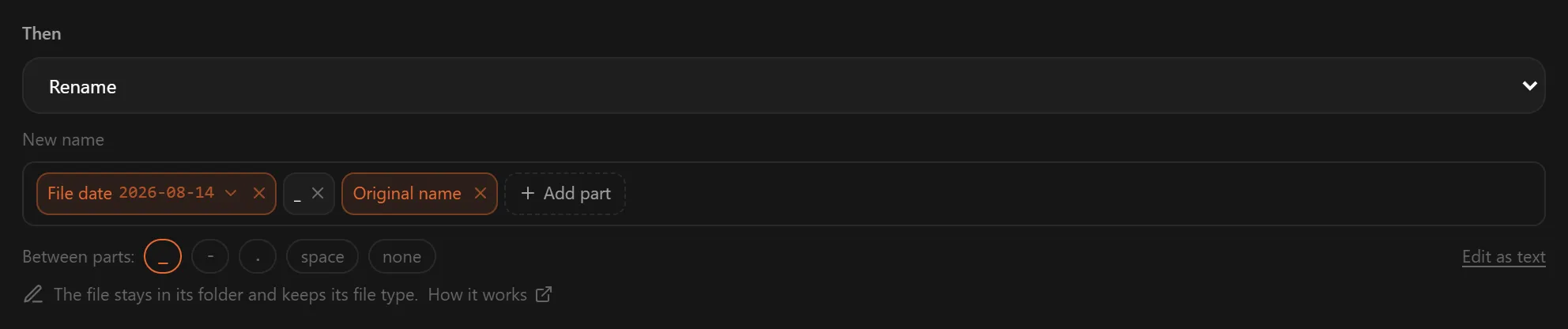
To rename invoices by invoice date, set the rule up in seven steps:
- Add the folder your PDFs arrive in. Click Add Folder and pick Downloads or your scanner's output folder.
- Pick out the documents. Go to Rules → New Rule and set two conditions: extension
.pdfand content containsinvoice. Content conditions are Pro. - Add the value. In the Values from the document panel, click Add value, choose Type its label, type
Invoice date, choose Date and click Add. Or choose Teach from a document, pick a sample PDF and click the date on it once. Both are covered in values from the document.
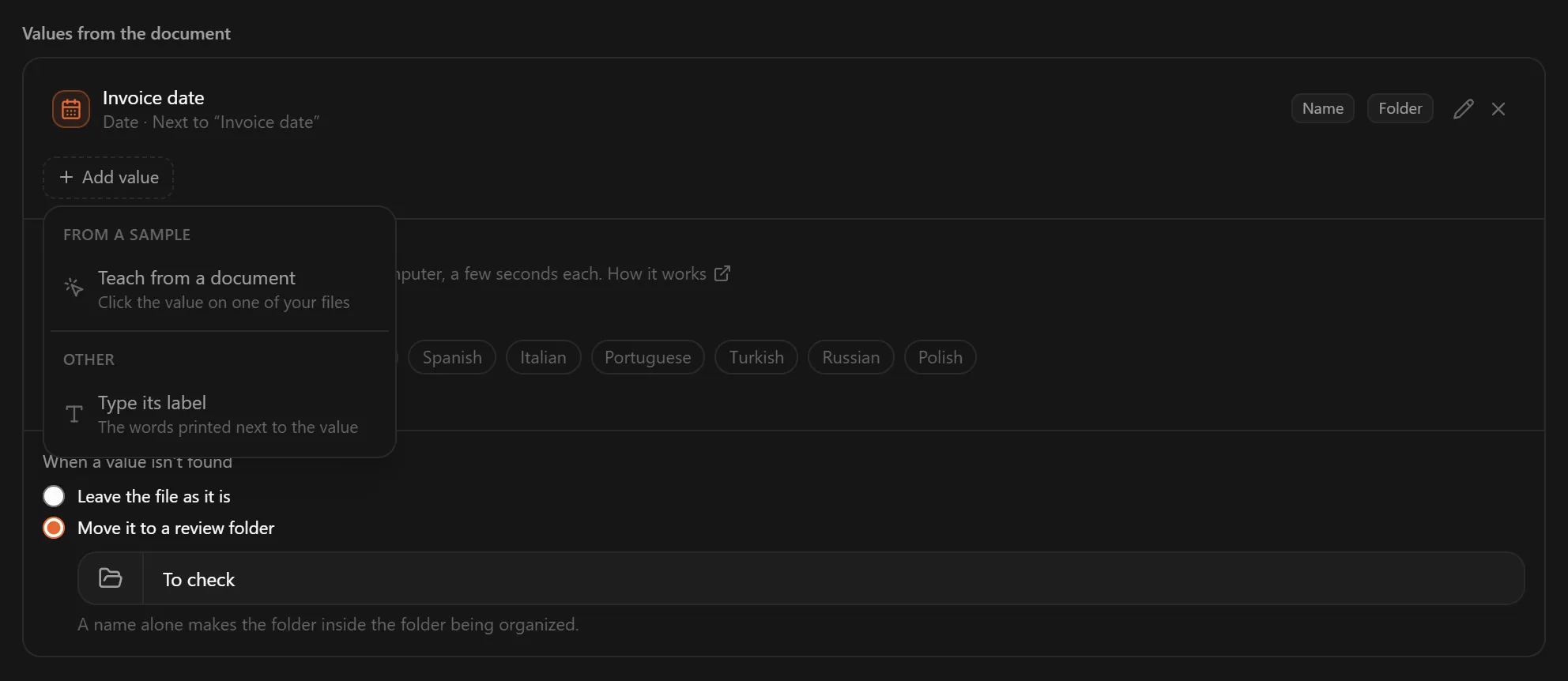
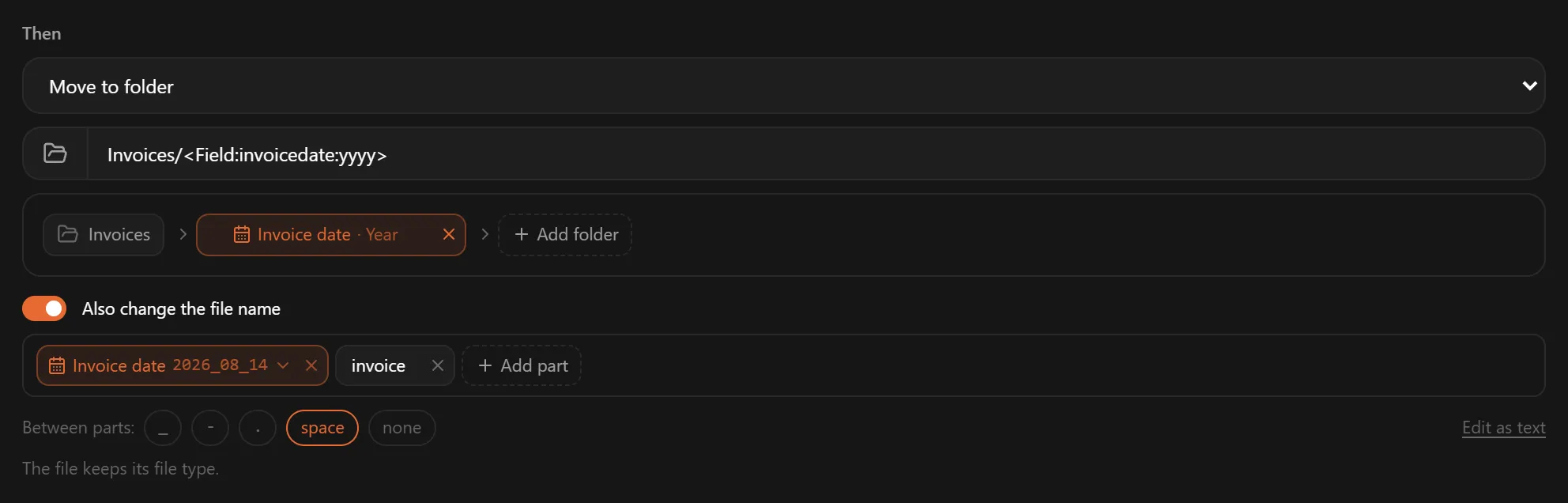
- Build the folder. Choose Move to folder and type
Invoices, then click Add folder and pick Invoice date · Year. - Build the new name. Switch on Also change the file name and set Between parts to a space. Click Add part, pick Invoice date, click the part and choose
2026_07_05, then add Fixed text and typeinvoice.
- Check the preview. What a run does lists each file with its new name, the values used and its folder, and says which files will be left alone and why.
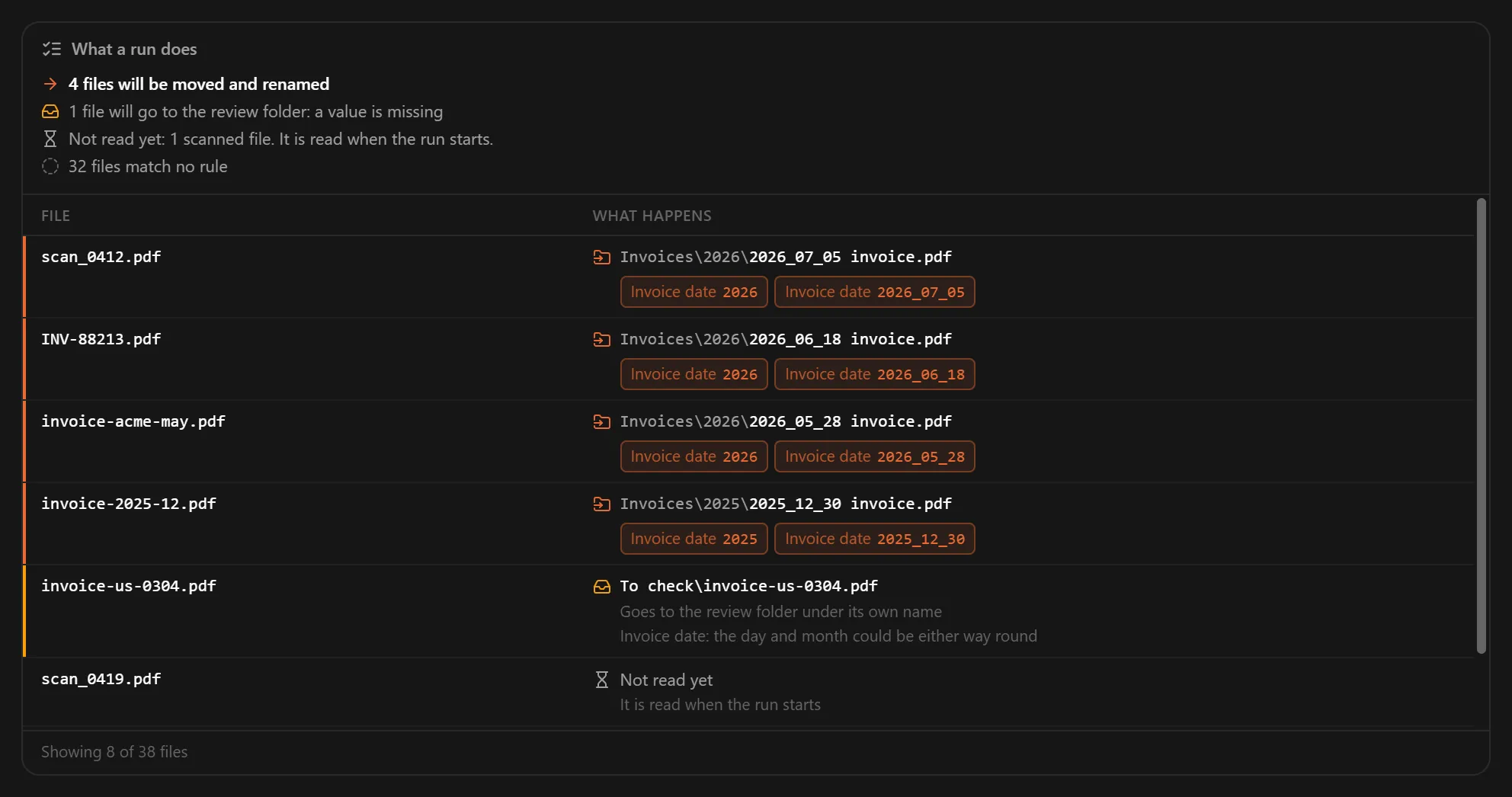
- Run it, or let it run. Add the rule to the folder with Add Rule and press Run to batch rename the PDF files already there; File Arbor shows what will happen and asks first. Switch the folder to Auto and each new invoice is renamed as it arrives.
A PDF that says Invoice date: 05/07/2026, with Due date: 19/07/2026 further down, becomes Invoices/2026/2026_07_05 invoice.pdf. The due date is never taken for the invoice date.
A file is renamed once. A rule that puts the date in front of the name does not do it again on the next run, after a restart or when Auto Mode sees the renamed file arrive, so you never get 2026-07-05_2026-07-05_scan.pdf. Nothing is overwritten: if the new name is taken, the file gets a number, as in invoice (1).pdf. After a run, Undo gives the files their old names back, and a single rename can be undone later from History.
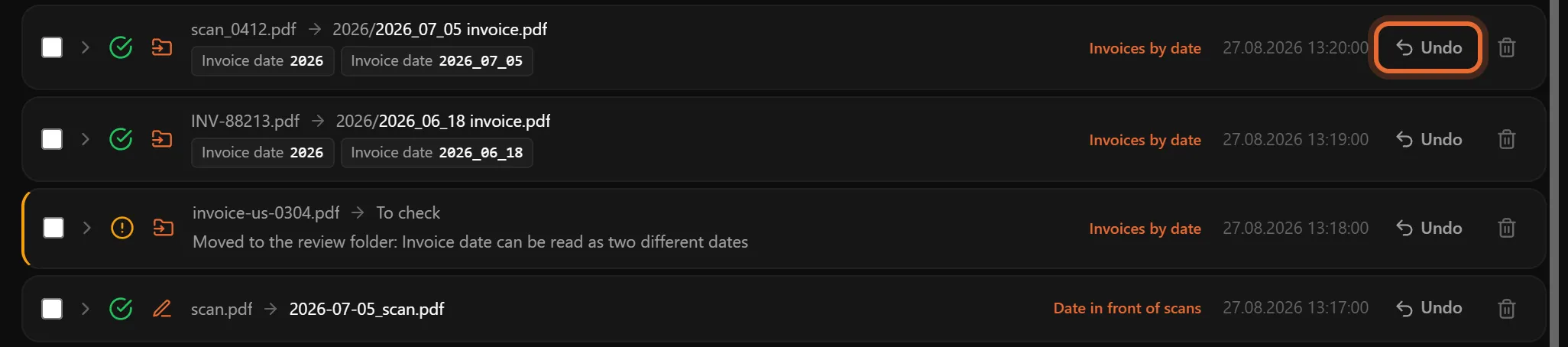
A rule reads up to eight values, so the name can carry more than the date. Add the invoice number as Text (INV/2026/7 becomes INV-2026-7, because a file name cannot hold a slash) and the total as an Amount, and the name can come out as 2026-07-05 INV-2026-7 1234.20.pdf.
How Does a Rule Read 05/07/2026: Day First or Month First?
05/07/2026 is 5 July in most of the world and May 7 in the US, and a wrong reading gives a name that looks right and is not.
Teach from a document. If the sample does not show the order, File Arbor asks you once: Day first, like 31/12 or Month first, like 12/31. From then on, documents of that kind are read that way.
Type its label. The order is worked out from each document, and another date in it can settle the question. A due date of 19/07/2026 can only be day first, so an invoice date of 05/07/2026 beside it is 5 July. When nothing in the document settles it, the file is left alone, or goes to the review folder, instead of being guessed. The preview shows this before a run: an invoice dated 03/04/2026 could mean 3 April or 4 March, so it goes to the folder to check.
Some dates are never in doubt. Only a date written with / or - whose first two numbers are both 12 or under can be read two ways. A date with dots, such as 05.07.2026, is always read day first. Year-first dates (2026-07-05) and dates with a month name (5 July 2026) are never ambiguous.
In Power Automate Desktop or Shortcuts, your format string or pattern makes this call for every file, silently.
What Happens When the Value Isn't There?
File Arbor does not guess. Some documents will not have the value: a receipt among the invoices, a vendor who prints the label differently, a date that could be read either way round. The setting When a value isn't found offers two choices:
- Leave the file as it is (the default): the file stays where it is, under its own name.
- Move it to a review folder (Pro): the file goes to the folder you name, under its own name. A name alone, such as
To check, makes that folder inside the folder being organized.
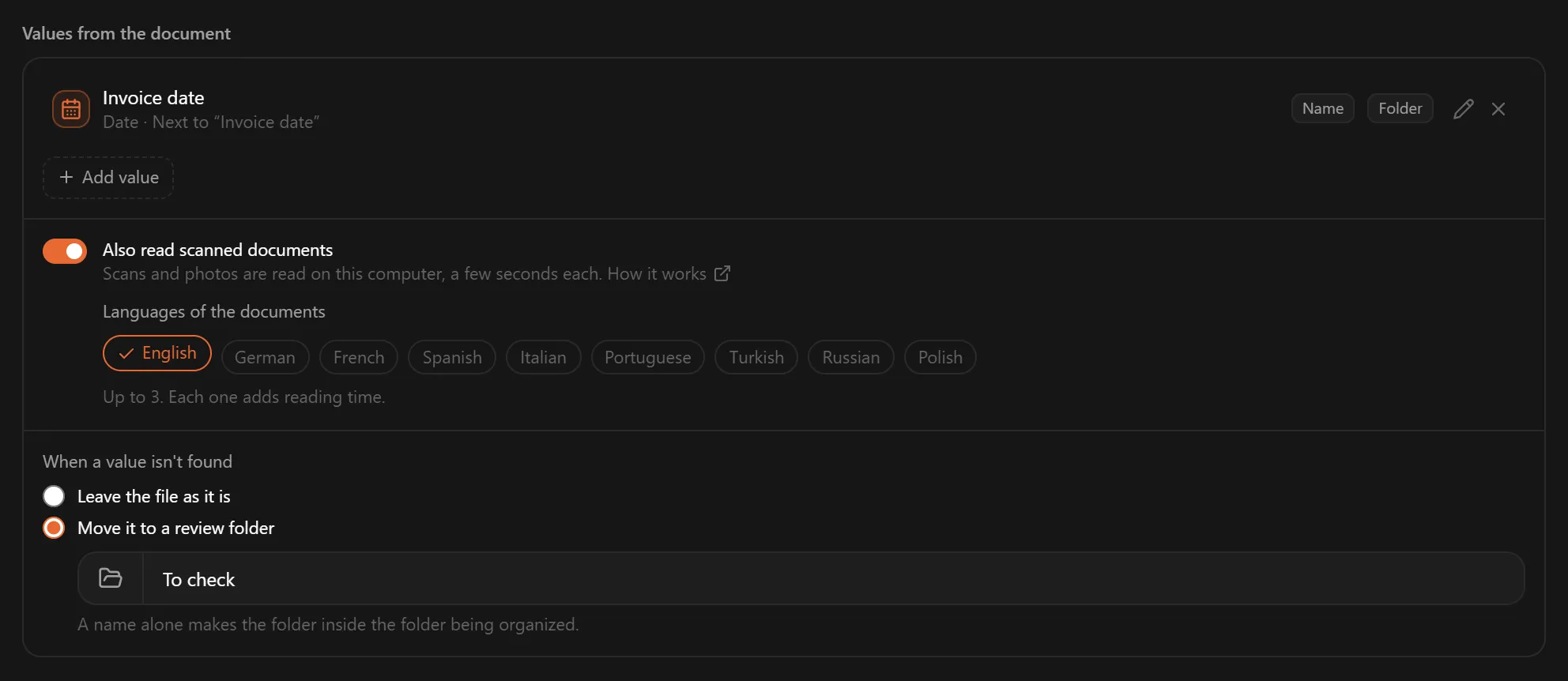
Either way, the file is reported once, not on every run: one History entry, Left untouched, names the value and the reason, and the notification shows a count. The file is read again when it changes or when you change the rule.
The rule stops there. A file whose value could not be read is not passed on to the next rule, so an invoice with an unreadable date never falls through to a catch-all rule below it.
Type its label takes one label per value, so a vendor who prints the label differently needs its own rule, with a condition that picks out that vendor (for example content contains Northwind) and that vendor's label. Or teach that vendor's layout in its own rule.
Can You Rename Scanned PDFs Automatically?
Yes, once OCR has turned the picture of the page into text.
To rename scanned PDFs in File Arbor Pro, switch on Also read scanned documents. It sits in the Values from the document panel and is on for new rules. File Arbor then recognizes the text on your computer: nothing is uploaded, and it works offline. Under Languages of the documents, pick up to three per rule, because each one adds reading time. Nine are available: English, German, French, Spanish, Italian, Portuguese, Turkish, Russian and Polish.

What is read: the first and last page of a scanned PDF, JPEG and PNG images, and the first page of a TIFF. Recognition takes about a second a page. Pages in between are never read, so a value on page 2 of a three-page scan is not found. HEIC, WebP, GIF and BMP images and password-protected PDFs are not read at all, and handwriting is not what it is made for. The preview reads at most six scans and marks the rest Not read yet; they are read when the run starts. The scanned documents section of the docs has the details.
Other tools handle scans differently. Hazel 6 has built-in OCR on the Mac. File Juggler needs a separate OCR program first. Power Automate's OCR actions do not read PDFs. On a Mac, Preview's Embed Text adds a text layer to one file at a time.
Rule-Based or AI Renamer: Which One Fits Your PDFs?
AI renamers read each document with a language model and propose a name; rules read the value you point them to.
AI fits a mixed pile of one-off documents that you could not describe in rules: no setup, and a name comes out for each file. Rules fit documents that keep arriving in the same layout, such as invoices, statements and payslips: the same document gets the same name, every time. File Arbor is rule-based: it reads a value by its label or by what you taught it, and never invents a name.
Where the documents go also differs, so check it before you pick a tool. Renamer.ai sends files to its servers for text extraction and AI analysis by default, then deletes them; since version 5.0 (September 2026) it can also process files on your computer with a local model. NameQuick's managed plans process document content in an EU cloud, and its $69 one-time self-managed plan uses your own API key or a local model. File Arbor reads documents, scans included, on your computer.
Cost differs too. Most AI renamers charge monthly or per file: Renamer.ai is free for 25 files a month and starts at $9.95 a month after that, and NameQuick's managed plans start at $12 a month (prices as of October 2026). File Arbor Pro is $24.99 one-time. The wider trade-offs are in AI versus rule-based file organizers.
Ways to Rename PDFs by Content, Compared
The table compares six ways to rename PDF files based on content, from platform and price to what happens when a value is missing.
| Feature | Power Automate Desktop | Shortcuts (Mac) | Hazel | File Juggler | AI renamers | File Arbor |
|---|---|---|---|---|---|---|
| Platforms | Windows | Mac | Mac | Windows | Varies by app | Windows and Mac |
| Price | Free | Free | $42 one-time | $50 one-time | Monthly or per file, some one-time | Free; Pro $24.99 one-time |
| Reads a value inside the PDF | Yes, with a regex you write | Yes, with a pattern you write | Yes | Yes | Yes, a model picks it | Yes (Pro) |
| Reads scanned PDFs | No, needs OCR first | No, needs a text layer first | Yes, built-in OCR | No, needs an OCR program | Varies by app | Yes (Pro), first and last page |
| Builds the folder from the value | Yes, with extra actions | Yes, with extra actions | Yes | Yes | Some apps | Yes |
| Renames new files on its own | Not on a free account | Yes, on macOS 26 | Yes | Yes | Varies by app | Yes (Pro, Auto Mode) |
| Dates like 05/07/2026 | Your format decides | Your pattern decides | Not documented | Not documented | Not documented | Asks once, or leaves the file alone |
| When the value is missing | Up to your flow | Up to your shortcut | The rule does not match | Not documented | Varies by app | Left alone, or a review folder (Pro) |
| Where documents are read | On your PC | On your Mac | On your Mac | On your PC | Often a cloud model; some run locally | On your computer |
Which Method Should You Choose?
"I have one folder of old PDFs on Windows and an afternoon to spare." Power Automate Desktop (Method 1). It is free and reads the text layer, and you run it when you choose, which suits a one-off folder.
"I'm on a Mac and only need this now and then." A shortcut as a Finder Quick Action (Method 2). On macOS 26 Tahoe, a folder automation can also run it when a file is added.
"I already own Hazel." Stay with Hazel. It already reads dates from contents and runs OCR. File Arbor makes sense if you also need the same rules on a Windows PC.
"Invoices arrive every month from the same vendors, on Windows, Mac or both." File Arbor Pro (Method 3). It renames invoices automatically, shows each new name in the preview before anything happens, and leaves alone a file it cannot read.
"I have a mixed pile of scans I couldn't describe in rules." An AI renamer. It needs no setup for a pile like that, but check where it processes documents before you feed it anything.
"I only want the date in front of every file name." File Arbor's free plan. File date plus Original name does it, with no document reading needed.
Name Patterns That Keep Your PDFs in Order
Put the year first and the names sort themselves: sorted by name, 2026-07-05 invoice.pdf lands in date order. 05.07.2026 is easy to read but does not sort by date, because the day comes first. In File Arbor, click a date part to choose how it is written: 2026-07-05, 2026_07_05, 20260705, 05.07.2026 and more.
Add what you search by. The invoice number and the amount are the usual two: 2026-07-05_INV-2026-7_1234.20.pdf tells you the date, the invoice and the total before you open the file. Set Between parts to _ if you would rather have no spaces in names.
Folders can carry part of the information. A date value can become a Year, Month or Year and month folder, so no single folder grows without end; organizing files into year and month folders covers the idea in more depth. The full convention, with templates for invoices and more, is in file naming conventions.
FAQ
Can I rename PDF files based on their content for free?
Yes. Power Automate Desktop (free on Windows 10 and 11) and Shortcuts (built into macOS) can both read a PDF's text and rename the file. File Arbor's free plan renames files from their date, original name and fixed text; reading a value from inside the document is part of Pro, $24.99 one-time.
Can Power Automate rename PDF files based on their content?
Yes. Power Automate Desktop has Extract text from PDF and Rename file(s) actions, with text actions in between to pick out the date or number. On a free Microsoft account, flows run when you start them (no triggers or schedules), and its OCR actions do not read PDFs, so scans need OCR first.
How do I rename invoices by the invoice date automatically?
Use a rule that reads the date printed next to the Invoice date label. In File Arbor Pro, add a value with Type its label, choose Date, and use it as a name part and as a Year folder: an invoice dated 5 July 2026 becomes Invoices/2026/2026_07_05 invoice.pdf. The due date is never taken for the invoice date.
Can scanned PDFs be renamed by their content?
Yes, once OCR reads them. File Arbor Pro reads scans and photos of documents on your computer: the first and last page of a PDF, about a second a page, in up to three of nine languages per rule. Hazel 6 does OCR on the Mac; File Juggler needs a separate OCR program first.
Does renaming a PDF change its contents?
No. Renaming changes only the file name; the pages and everything in them stay as they were. In File Arbor the file keeps its extension, a name that is already taken gets a number instead of overwriting another file, and a rename can be undone from History.
Is it safe to let a tool read my invoices?
It depends on where the reading happens. Many AI renamers send the document, or text from it, to a cloud model unless you switch to a local one. File Arbor reads documents, scans included, on your computer: files, their names and their contents never leave it, and the app sends only anonymous usage statistics.
The Takeaway
The free routes are fine for a one-off folder: build the Power Automate Desktop flow or the shortcut, test it on copies, and run it. To automatically rename PDF files that keep arriving, a rule that reads the value, asks instead of guessing and leaves alone what it cannot read is the safer system.
Download File Arbor: the free plan renames files from the file date, and Pro, $24.99 one-time, adds values from documents, scans and Auto Mode. Build the invoice rule for one vendor first, check the preview, then switch the folder to Auto to rename invoices automatically.
