
How to Organize Your Downloads Folder Automatically (3 Ways)
Three ways to keep Downloads tidy on Windows and Mac: built-in tools, a simple folder system, or rules that file every PDF, image and installer for you.
The fastest way to organize your downloads folder automatically is to point a folder-watching app at it: you set up a few rules once — PDFs to Documents, images to Images, installers to Installers — and every new download gets moved seconds after it lands. Windows and macOS ship free tools that help a little, and a hand-made folder system helps a bit more. This guide covers all three approaches, so you can pick the one that matches how messy your folder actually is.
Why Is Your Downloads Folder Always a Mess?
The Downloads folder is the one folder on your computer that other programs fill for you. Every attachment you save, every PDF a website hands you, every installer, ZIP file, and meme ends up in the same flat list. You never chose to put anything there — it just accumulates.
That is why cleaning it by hand never sticks. You can spend an afternoon sorting a thousand files into tidy subfolders, and the folder starts filling up again the same evening, because the thing that made the mess — your browser saving everything to one place — has not changed.
So the fix is not another cleanup session. The fix is changing what happens to a file after it lands. There are three realistic ways to do that.
The Three Ways to Sort Downloads Automatically
- Built-in OS tools — free, already installed, but they clean up or group files rather than sort them.
- A manual folder system — free and flexible, but it only works as long as you do.
- A rule-based file organizer — sorts files for you, on arrival, using rules you write once.
| Built-in tools | Manual folder system | Rule-based organizer | |
|---|---|---|---|
| Cost | Free | Free | Free plan; paid for full automation |
| Setup time | 2 minutes | 10 minutes | 10 minutes |
| Moves files into folders | No | Yes, by hand | Yes, by your rules |
| Keeps working without you | Deletes or groups only | No | Yes, with real-time or scheduled runs |
| Risk | Storage Sense deletes by age alone | Files pile up when you are busy | A bad rule can misfile, so preview and undo matter |
| Best for | Reclaiming disk space | A few downloads a week | Daily downloads |
We will go from the free option up, so you can stop at whichever level solves your problem.
Method 1: The Built-In Tools You Already Have
Both operating systems ship something that touches the Downloads problem. Neither one actually solves it, but they are free and take two minutes, so they are worth knowing.
On Windows, Storage Sense deletes old files from Downloads on a timer:
- Open Settings → System → Storage → Storage Sense and switch it on
- Under Delete files in my Downloads folder if they haven't been opened for more than, choose a number of days
The catch: Storage Sense is a shredder, not a filing clerk. It removes files by age alone, and only from the top level of Downloads — it cannot move a PDF to Documents, and it will delete a contract you forgot to move out just as happily as a stale installer. Tools that actually sort files on Windows are compared in our Windows file organizer guide.
On a Mac, Smart Folders give you saved searches that look like folders. Choose File → New Smart Folder in Finder, add criteria such as file kind or date, and save it to the sidebar. You can also right-click inside any folder and use Group By → Kind to cluster files visually.
The catch is the same in both cases: nothing moves. Smart Folders and grouping change how the pile is displayed, not where the files live. Your Downloads folder stays exactly as full as it was.
Built-in tools are fine if your only goal is reclaiming disk space. If you want files sorted into real folders, keep reading.
Method 2: A Folder System You Maintain by Hand
The do-it-yourself version costs nothing and takes ten minutes to set up. Create subfolders inside Downloads and move files into them as they arrive:
- Documents — PDFs, Word files, spreadsheets
- Images — photos, screenshots, wallpapers
- Installers — EXE, MSI, DMG files
- Archives — ZIP, RAR, 7z files
- Videos and Music — if you download media regularly
Two small tweaks make this system last longer. First, switch your browser to ask where to save each file (the settings are in the next section), so files with an obvious home go there directly. Second, put a recurring 10-minute cleanup slot in your calendar, because the folders only stay useful if the sorting actually happens.
Tell your browser where to save downloads
Every browser saves to Downloads unless you tell it otherwise. You can change the folder, or have the browser ask every time:
| Browser | Where the setting is | What to change |
|---|---|---|
| Chrome | ⋮ → Settings → Downloads | Location → Change, and the switch Ask where to save each file before downloading |
| Edge | … → Settings → Downloads | Location → Change, and Ask me what to do with each download |
| Firefox | ☰ → Settings → General → Files and Applications | Save files to, or Ask where to save files before downloading |
| Safari | Safari → Settings → General | File download location |
Asking every time is the manual version of sorting: you decide the folder at the moment you download. It works for the files you care about and gets tiring for everything else, which is where Method 3 comes in. Safari's Remove download list items setting only clears the list in the downloads window; the files stay on disk.
And that is the weakness. Manual sorting depends on you making a small filing decision every time you download something, and those decisions are exactly the chore you are trying to get rid of. Most people keep it up for a week or two; then a busy day arrives, files pile up in the root again, and the subfolders quietly go stale.
If you download a handful of files a week, this method is honestly enough. If your Downloads folder gains files every day, automation pays for itself fast.
Method 3: Rules That Do the Sorting for You
A rule-based file organizer watches your Downloads folder and applies your filing decisions for you. On the Mac, Hazel made this category famous. File Arbor brings the same idea to both Windows and Mac, and its free plan — one watched folder, two rules, up to 20 files a day, manual runs — is exactly the size of a Downloads folder problem. If you want a broader look at the options, we compared the best automatic file organizers for Windows and Mac separately.
Here is what the setup looks like in File Arbor:
1. Add Downloads as a watched folder. Install the app from the download page, click Add Your First Folder, and pick Downloads. The folder shows up as a card on the dashboard.
2. Switch on quick rules. Open the Assign Rules panel from the folder card and tick the categories you want — Images and Documents cover most of the mess. Each quick rule already knows which extensions belong to it and creates a tidy subfolder.
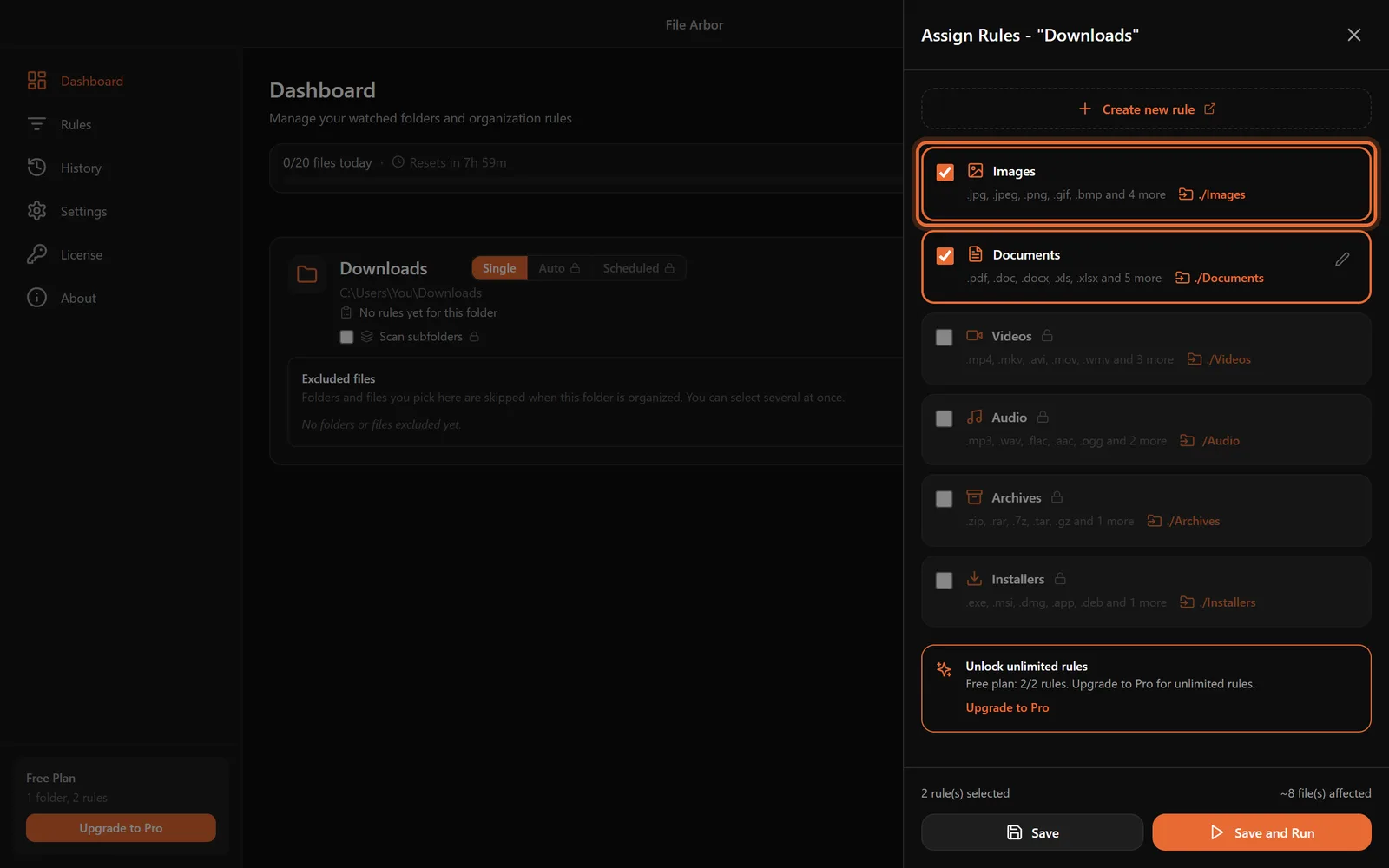
3. Run it once on the backlog. Click Run and confirm. Everything already sitting in the folder gets sorted in one pass, and the History page records every move — which file, which rule, where it went. If something surprises you, you can see exactly what happened.
4. Turn on Auto Mode. Flip the folder card from Single to Auto, and from now on every new download is moved within a second or two of finishing. A download still in progress keeps the browser's temporary name (such as .crdownload in Chrome or .part in Firefox), which your extension rules do not match, so half-finished files are left alone. Prefer a daily tidy-up instead of instant sorting? Scheduled mode runs your rules on the days and times you pick. Both automatic modes are part of Pro, a $24.99 one-time purchase.
What Custom Rules Add on Top
Quick rules sort by file type. Custom rules, most of which come with Pro, let you encode more specific habits:
- Route invoices by name. A rule matching file names that contain
invoicecan send those PDFs toDocuments/Invoicesbefore the general PDF rule picks up the rest. Rules run in order, so the specific one goes first. - File downloads by date. Set a destination like
Downloads/<Year>/<Month>and the app creates2026/08-style folders on the fly — useful when "when did I download this?" is how you remember files. We cover this pattern in depth in organizing files into year and month folders. - Quarantine the big stuff. A "size greater than 500 MB" condition moves disk-image-sized files into a
Large Filesfolder you can review when disk space runs low. - Auto-expire installers. An "older than 30 days" condition on
.exeand.dmgfiles can move stale installers to the recycle bin — you can always download them again.
One honest note: File Arbor Pro reads document text — PDFs, DOCX, and TXT/MD/CSV — and since 1.3.0 also scanned PDFs and photos with OCR, though only their first and last page. Hazel 6 on Mac runs OCR as well, and File Juggler on Windows reads the text of PDF and Word documents.
If you want to know what happens to a download between landing and being filed (waiting for it to finish, which rule wins, what happens on a name clash), see how automatic file sorting works.
Which Method Should You Choose?
"My folder is big but I rarely download anything new." Sort it once by hand with Method 2 and skip the software. A one-time mess needs a one-time cleanup.
"I just want old junk gone automatically." Storage Sense on Windows does exactly that. Set it to 30 days and accept that it deletes rather than files.
"New files show up every day and I am done sorting them." Use a rule-based organizer. Start with File Arbor's free plan; if you fill its 20-file daily limit, that is the sign your folder genuinely needs the automation Pro unlocks.
"I want my whole machine organized, not just Downloads." Start with Downloads anyway — it is where most clutter is born — then extend the same rules to your desktop and documents. Our step-by-step system setup guide walks through the full build.
How Do You Keep It Clean for Good?
Whichever method you pick, two habits keep the folder from relapsing.
Let the rules own the folder. Once sorting is automated, resist creating one-off subfolders by hand inside Downloads — files the rules do not know about are files that pile up. If a new kind of file keeps appearing, add a rule for it instead. That is one decision, once.
Review the leftovers monthly. Whatever lands in your catch-all folder is a list of filing decisions you have not made yet. Ten minutes a month is enough to either add rules for the recurring cases or delete the junk. The same routine works for desktop clutter, which tends to be the next folder people fix.
The Takeaway
A messy Downloads folder is not a discipline problem — it is what happens when every program on your computer saves to one place and nothing sorts the result. Built-in tools trim the pile, a manual system works while your willpower does, and sorting rules fix it permanently. Set up a watched folder with File Arbor's free plan tonight, and tomorrow's downloads will file themselves.
FAQ
What is the best way to organize the downloads folder automatically?
A folder-watching app with sorting rules. You point it at Downloads once and tell it where each file type belongs. File Arbor does this on Windows and Mac: its free plan (one watched folder, two rules, up to 20 files a day, manual runs) sorts when you click Run, and Pro's Auto Mode moves new files the moment they arrive.
Can Windows organize the downloads folder by itself?
Only partially. Storage Sense can delete files in Downloads that have not been opened for a number of days you choose, and File Explorer can group files by type on screen, but neither actually moves a PDF into a Documents folder or a screenshot into Images. For real sorting you need a script or a dedicated file organizer.
How do I automatically sort downloads by file type?
Create one rule per category: files with the extension .pdf or .docx move to Documents, .jpg and .png to Images, .exe and .dmg to Installers. A folder-watching app applies those rules to everything already in Downloads on the first run, then keeps sorting new downloads as they land.
Is it safe to let an app move my downloads automatically?
Yes, as long as the app shows its work. File Arbor previews how many files match before anything moves, logs every move in a History page, and renames instead of overwriting when two files share a name. Files are only ever moved, not deleted, unless you deliberately build a delete rule.
Should I just delete everything in my downloads folder?
No. Downloads folders mix junk with documents you own no other copy of, like signed contracts and receipts. Sort the folder by type first, keep the documents and images, and then delete what is left over, such as old installers and archives, which you can always download again.