
What File Arbor is
File Arbor watches folders that fill up on their own — Downloads, Desktop, a scanner's output folder — and files what lands there according to rules you write once.
The whole app is three ideas, and you already know two of them.
A watched folder is a folder File Arbor keeps an eye on. Most people start with Downloads, because that is where clutter is born.
A rule is an if this, then that sentence: if the file is a PDF, move it to Documents. Rules live on their own, and you assign them to folders — so one "photos" rule can serve Downloads, Desktop and a camera import folder at once.
A mode decides when a folder's rules run: when you press a button, the moment a file arrives, or on a schedule.
What it does not do
It is worth being clear about the edges, because they save you an hour of hunting later:
- It does not sync, back up or upload your files. Files never leave your computer.
- It does not open your files unless a rule specifically asks it to read their text.
- It does not run in the cloud. Scheduled runs need the app to be running.
- It does not edit your files. Rules move, rename, bin, delete or run a command — nothing else.
If you only have fifteen minutes
The step-by-step setup guide is a shorter walkthrough that gets a working system running and stops there. This page is the reference you come back to.
Installing and first launch
File Arbor runs on Windows 10 and 11 and on macOS 10.15 or later (a single universal build for Intel and Apple Silicon). Grab the installer from the download page. There is no account to create and no sign-up form — the free plan works the moment the app opens.
The welcome tour
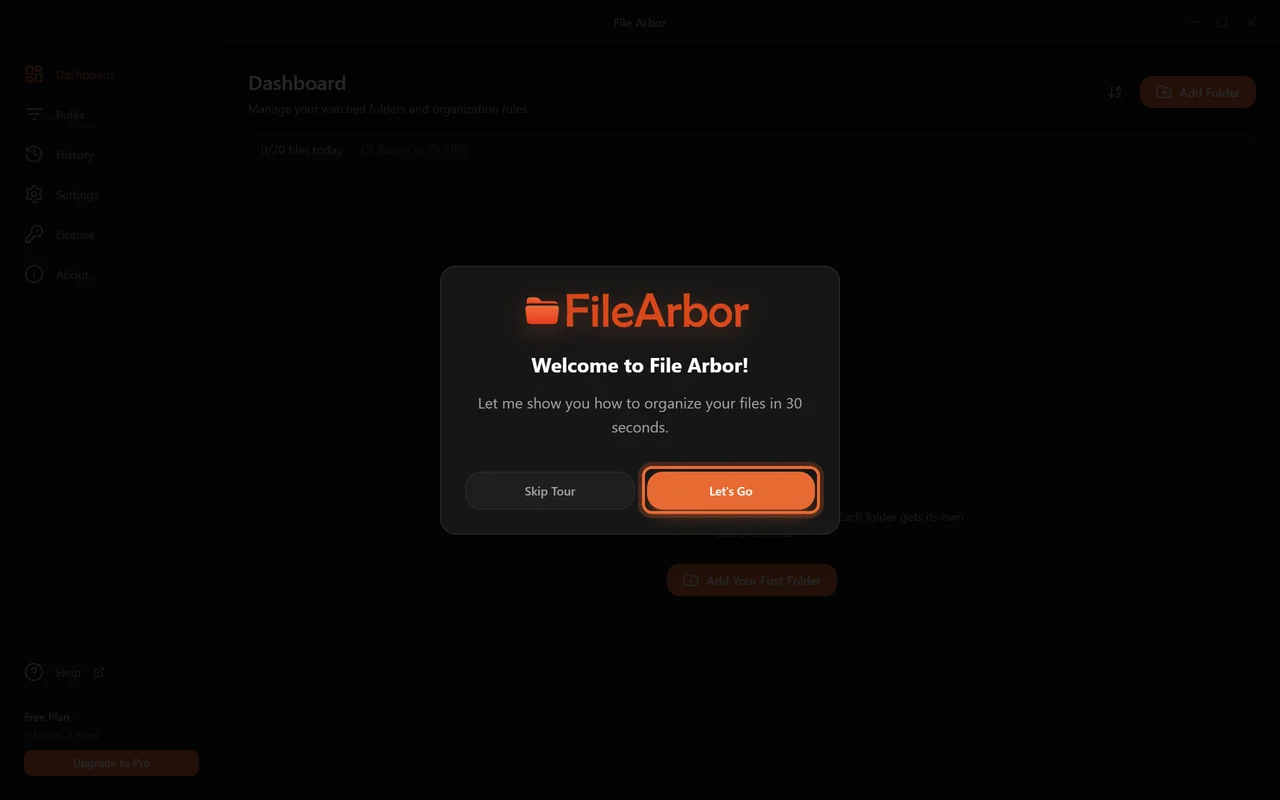
The first launch offers a five-step tour that points at the buttons this page describes. Take it or skip it; nothing is decided by the choice.
The sidebar
Six places, and you will spend most of your time in the first two.
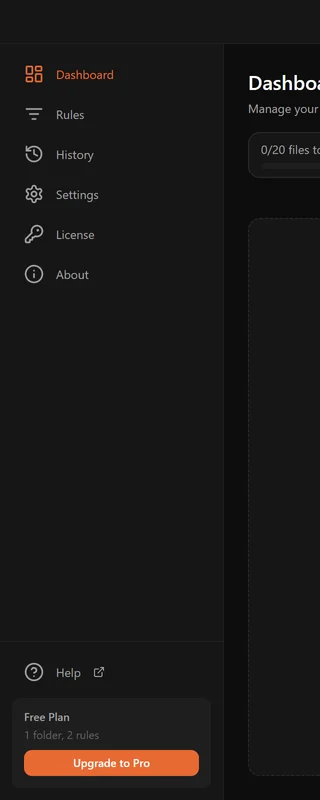
| Page | What lives there |
|---|---|
| Dashboard | Your watched folders, their modes, and the Run button |
| Rules | Every rule you own, and the editor for creating them |
| History | A searchable log of everything the app has done to your files |
| Settings | Theme, language, startup, notifications, conflict behaviour |
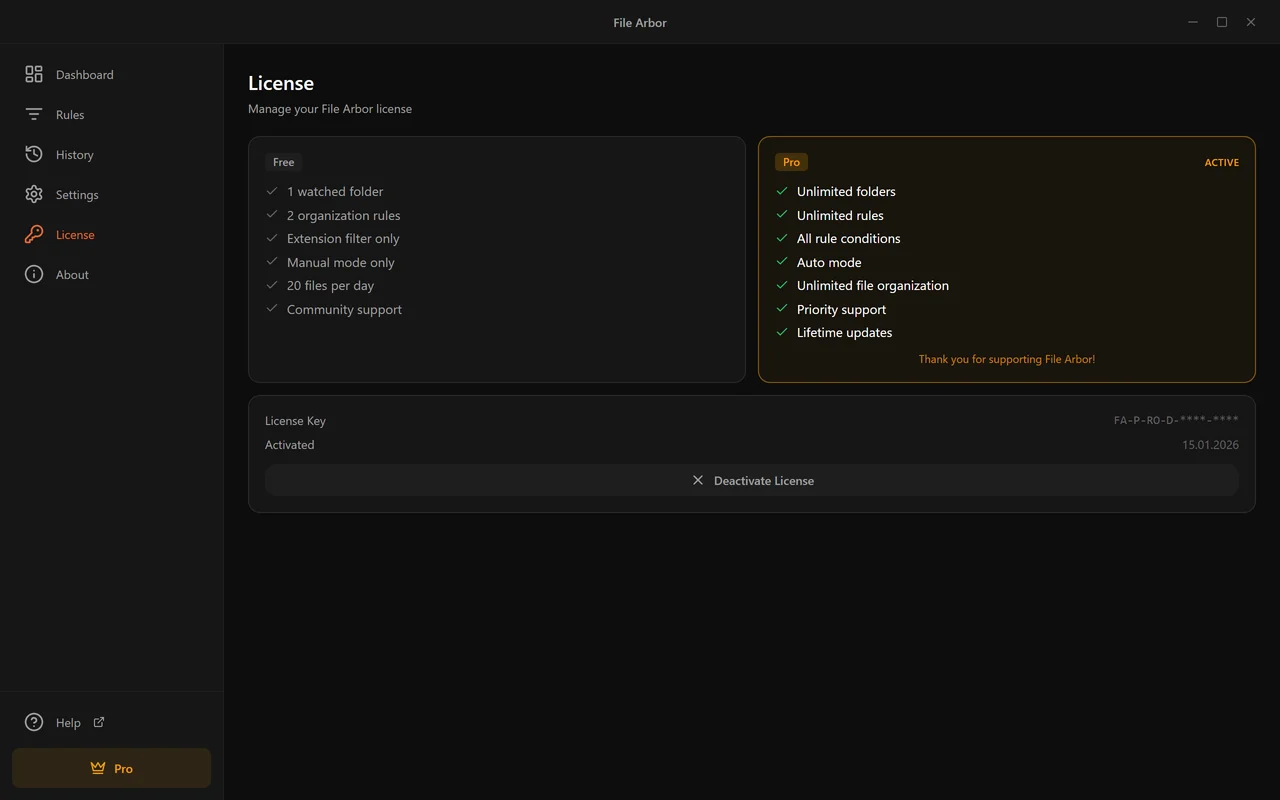
| Licence | Your plan, the key, activation and deactivation |
| About | Version number and the update check |
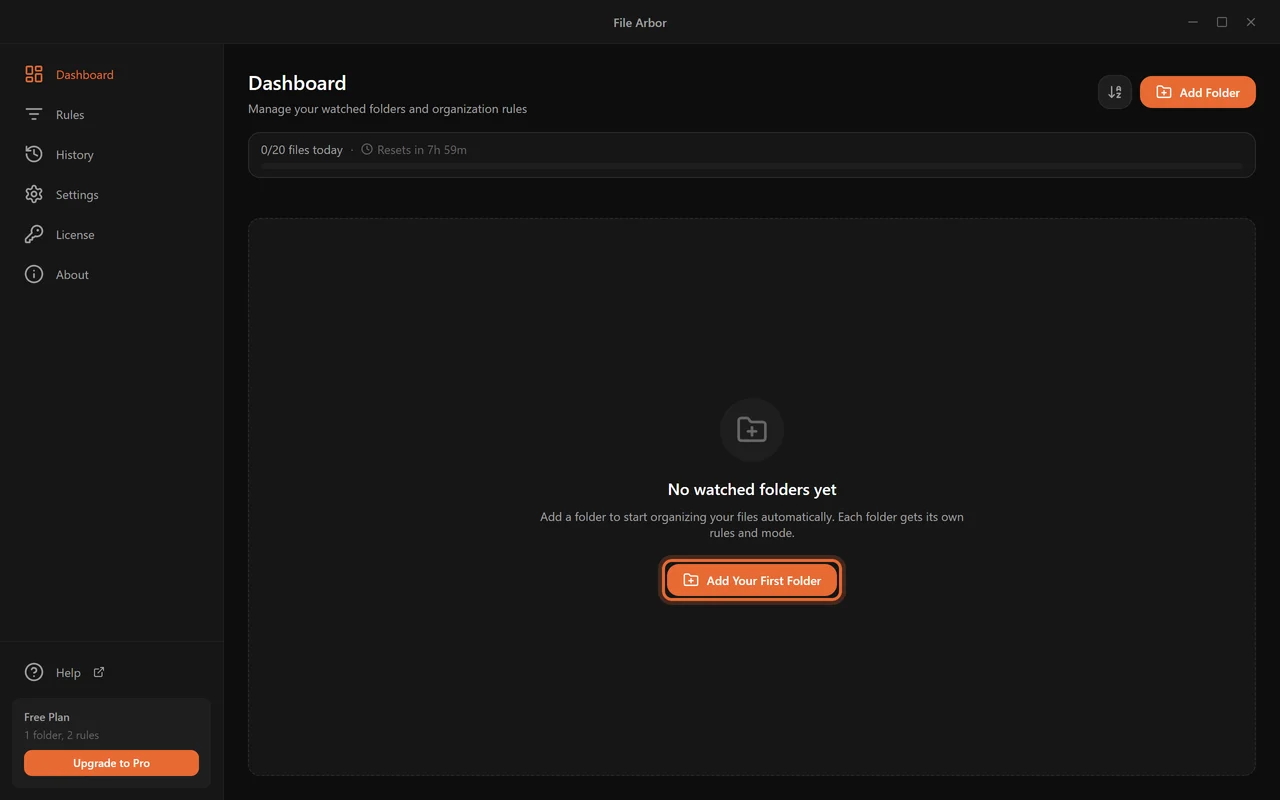
An empty dashboard is what you see after the tour.
macOS permissions
macOS asks before an app may read certain folders. If a folder you add shows no files, or a run reports permission errors, open System Settings → Privacy & Security → Files and Folders (and, for folders such as Desktop or Documents, Full Disk Access) and allow File Arbor. The app shows a dialog with the same instructions when it hits this.
Adding a watched folder
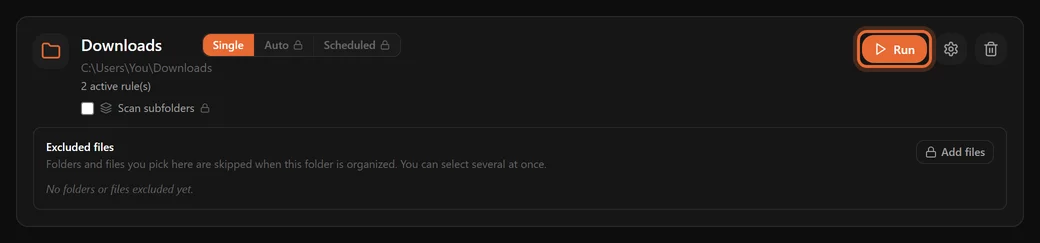
Click Add Folder on the dashboard and pick the folder in your system's file picker. It appears as a card.
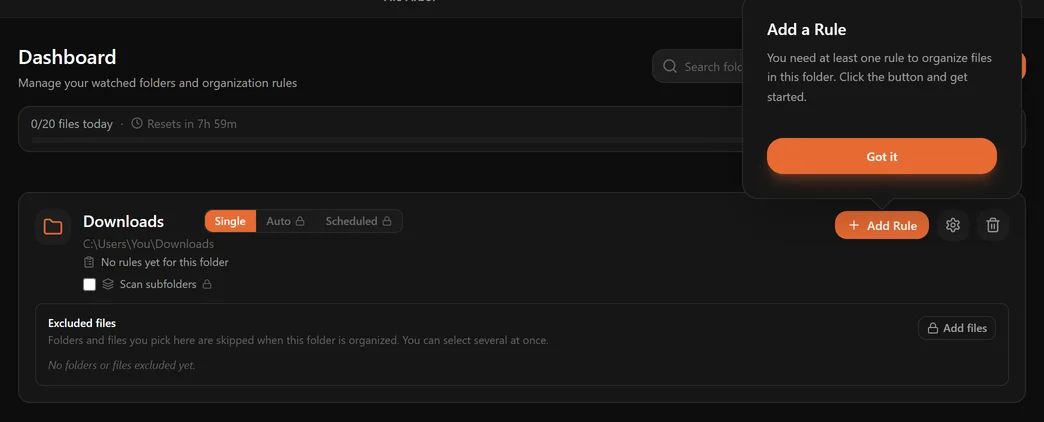
The card carries everything about that folder in one place:
- Name and path. The name is yours to change — hover the name and click the pencil. Renaming here does not touch the folder on disk. Hover the path and click the folder icon to watch another folder.
- Rule count. How many enabled rules are assigned.
- Mode switch — Single, Auto, Scheduled.
- Scan subfolders checkbox (Pro).
- Excluded folders or files — a skip list that applies in every mode.
- Run, Manage Rules (the gear) and Remove (the bin).
Removing a folder from File Arbor removes the card, not the folder. Nothing on disk is touched.
Changing the folder keeps the card as it is: its rules, mode, schedule and excluded folders stay, and nothing on disk moves. A rule whose destination sits inside the watched folder, such as Invoices/<Year>, now builds it inside the new one. In Auto mode the card comes back paused, so the files already in the new folder wait until you press Resume.
Free plan: one folder
The free plan holds one watched folder. Pick the one that generates the most mess — usually Downloads. If you later add a second and then downgrade, extra folders are kept but paused rather than deleted, so nothing is lost.
Real-life starting points
| Folder | Why it is worth watching |
|---|---|
| Downloads | Installers, invoices, images and zips all land in one heap |
| Desktop | Screenshots and "I'll deal with this later" files |
| A scanner's output folder | Every scan arrives with a machine-generated name |
| A phone or camera import folder | Hundreds of photos with no structure |
| A shared team folder | Reports that need filing by year the moment they appear |
Modes: when rules run
Every folder is in exactly one of three modes. The switch sits next to the folder name.
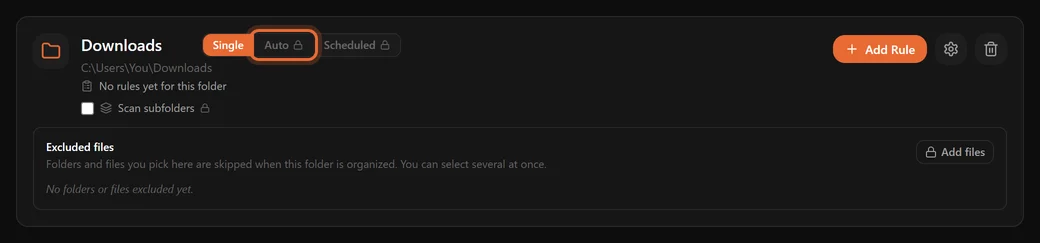
Single — you press Run
The default, and the only mode on the free plan. Rules run when you click Run, and not before. File Arbor shows what will happen and asks for confirmation first.
Use it when you would rather decide when tidying happens, or when you want to check a new rule before trusting it.
Auto — the folder watches itself (Pro)
The folder is watched continuously; a file that lands in it and matches a rule is filed within a second or two. Switching a folder to Auto also organizes what is already sitting there, so the app confirms before it starts.
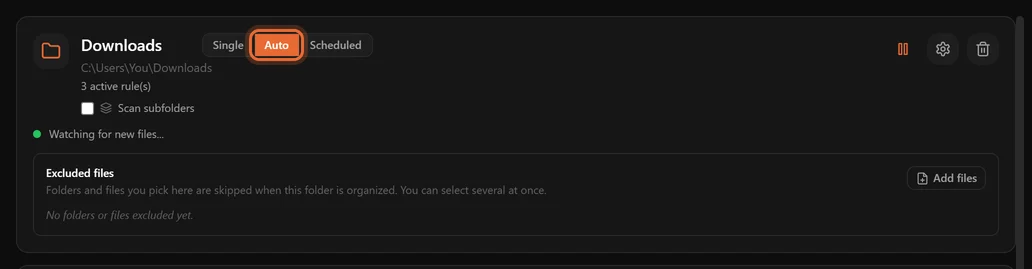
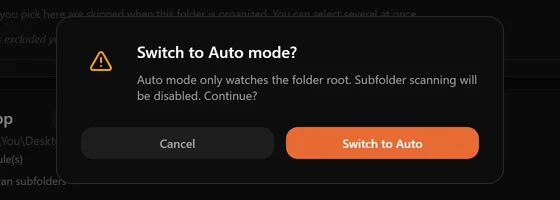
Auto Mode watches the top level only
The watcher looks at files that land directly in the folder, not inside its subfolders. Filing what is already nested inside subfolders is a separate feature — see Subfolder scanning — and it is manual.
Scheduled — at a time you choose (Pro)
Pick days and a time; the folder is organized then. Useful when you would rather not have files moving under you while you work: weekdays at 18:00, after you have finished for the day.
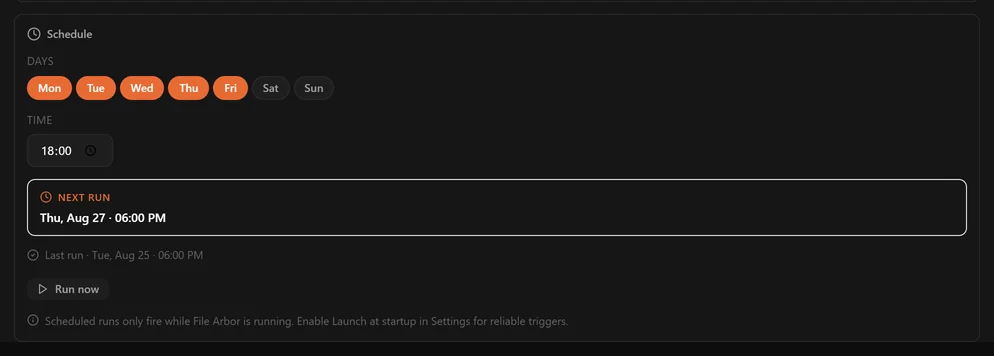
Schedules need the app to be running
The timer lives inside File Arbor, not in Windows Task Scheduler or macOS launchd. If the app is closed at 18:00, nothing runs and the job is not caught up later. Turn on Launch at startup in Settings and let the app sit in the tray. Run now in the schedule panel triggers a run immediately without disturbing the schedule.
Why you cannot have two at once
Auto, Scheduled and subfolder scanning make promises that contradict each other — a live watcher cannot also be a recursive sweep. Rather than letting the settings drift out of step, File Arbor asks.
Quick rules: the six built-in ones
Every install ships with six ready-made rules covering the file types that make up most of a Downloads folder. They are ordinary rules — you can edit, disable or duplicate them — they just come pre-written.
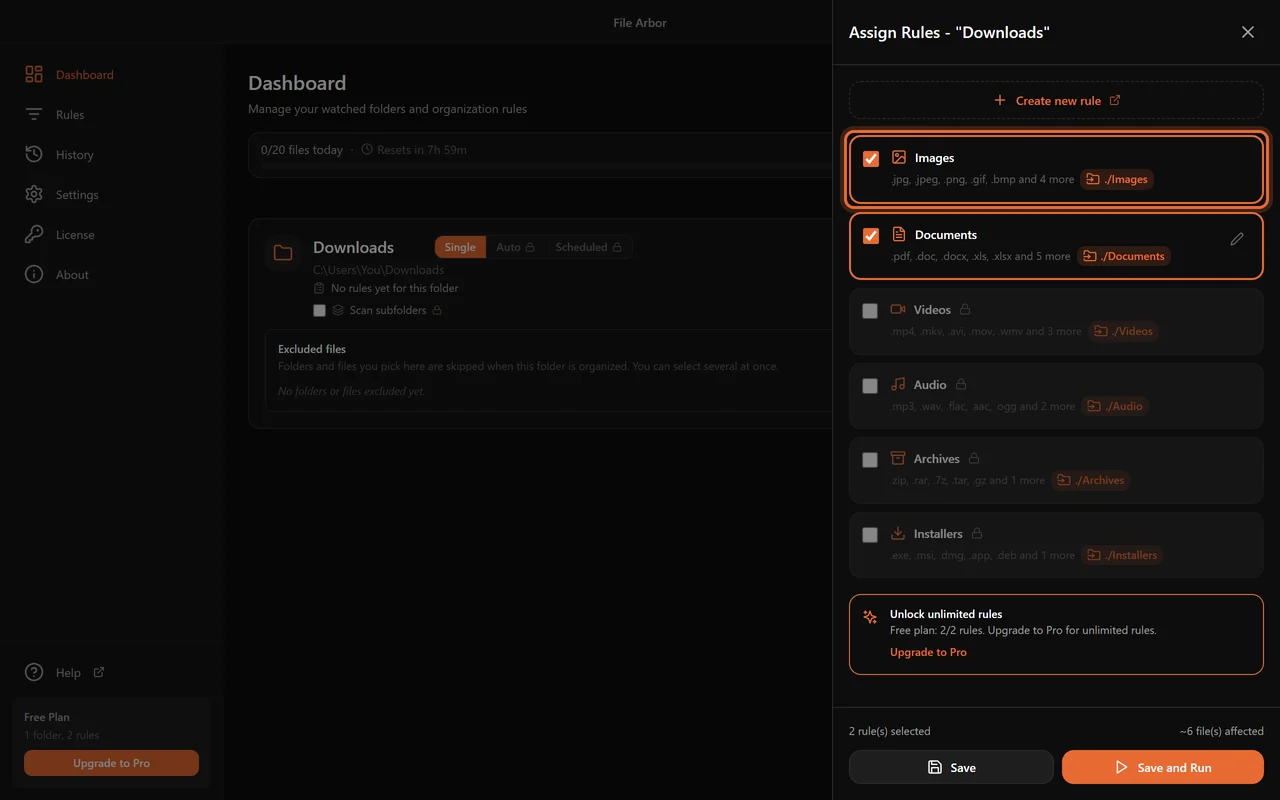
| Quick rule | Catches | Files into |
|---|---|---|
| Images | jpg, jpeg, png, gif, bmp, webp, svg, ico, heic | Images |
| Documents | pdf, doc, docx, xls, xlsx, ppt, pptx, txt, rtf, odt | Documents |
| Videos | mp4, mkv, avi, mov, wmv, flv, webm, m4v | Videos |
| Audio | mp3, wav, flac, aac, ogg, wma, m4a | Audio |
| Archives | zip, rar, 7z, tar, gz, bz2 | Archives |
| Installers | exe, msi, dmg, app, deb, rpm | Installers |
Destinations are relative, so Images means a folder called Images inside the folder being organized. Watch two folders with the same rule and each gets its own Images subfolder.
Editing one
On the Rules page, a quick rule offers Duplicate and edit — you get a normal rule with the same conditions, free to change, while the original stays intact. If you edit a quick rule directly and regret it, Reset to default puts it back.
Free plan: two rules
Two rules, not two quick rules — the six built-ins and anything you write share the same allowance. Images and Documents together already handle most of a Downloads folder.
Writing your own rule
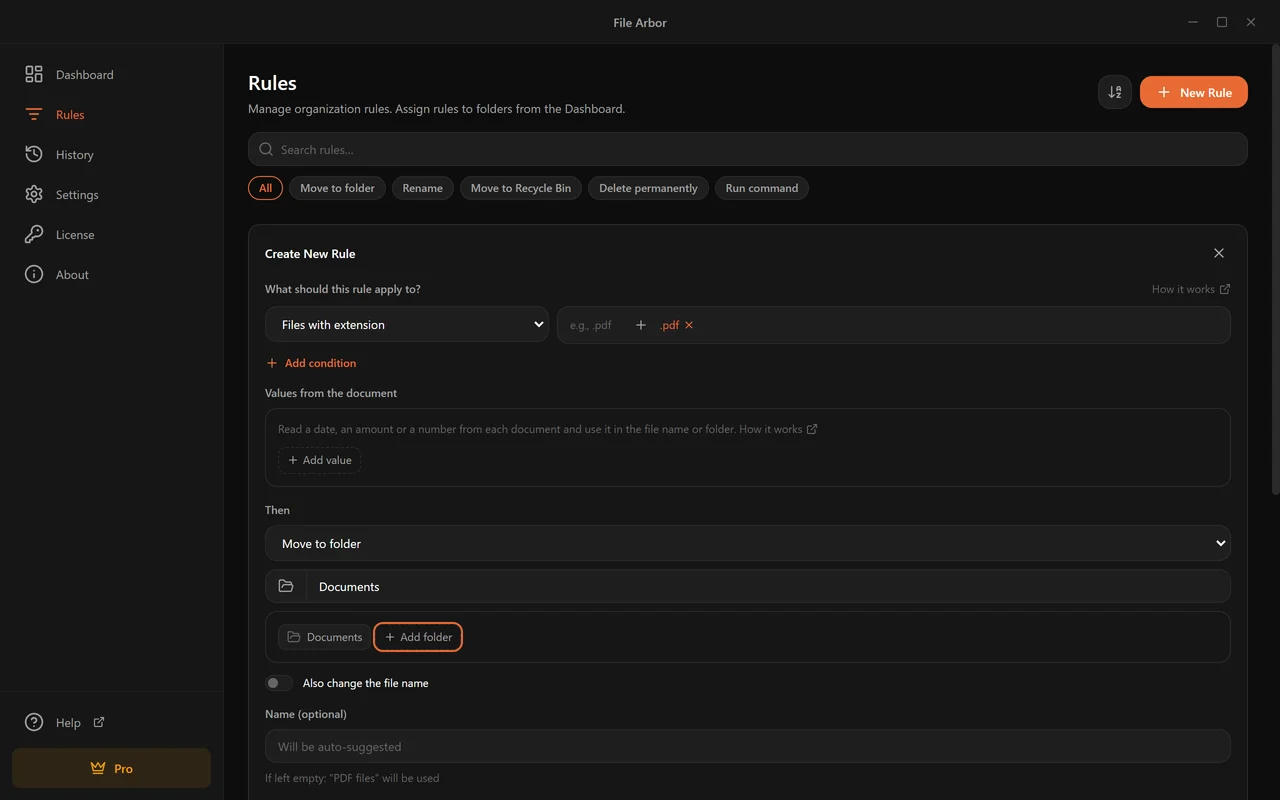
Go to Rules → New Rule. The form reads as one sentence: what should this rule apply to, then what to do with it.
Say what to match
Pick a condition type from the dropdown and fill in its value. Extension is the plainest: type
.pdfand press Enter to make it a chip. Add several chips to catch several extensions.Say what to do
Choose an action under Then — move, rename, Recycle Bin, delete, or run a command. For a move, type a destination folder or build one out of pieces.
Check the live preview
The preview counts how many files in a watched folder this rule would affect right now, and names a few of them. If the count is zero or is much larger than you expected, that is the moment to find out.
Name it, or don't
Leave the name empty and File Arbor writes one from the conditions — "PDF files", "Files larger than 100 MB". Give it your own name when the rule means something the conditions do not say, like "Client invoices for the accountant".
Pick an icon (optional)
Only affects how the rule looks in lists. Left alone, an icon is chosen from the condition type.
The preview is the safety net
Nothing in File Arbor moves a file without you either pressing Run or turning on Auto Mode, but the preview is where a mistake is cheapest to catch. A rule you expect to hit six files and that reports four hundred is a rule with a condition you did not mean.
Conditions: choosing which files
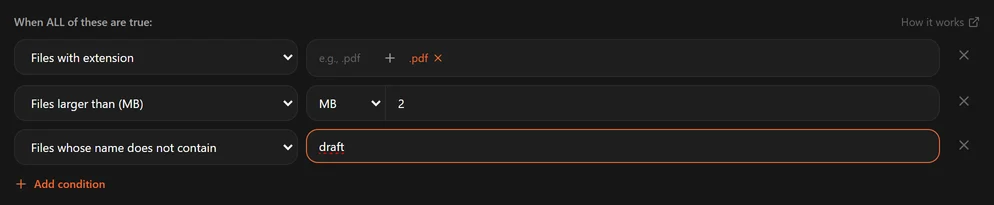
A rule runs on a file when all of its conditions are true. Add a second condition and the rule gets narrower, never wider.
The eleven "matches" conditions
| Condition | Matches when | Plan |
|---|---|---|
| Files with extension | The extension is one of the chips you list | Free |
| Files whose name contains | The name contains your text anywhere | Pro |
| Files whose name starts with | The name begins with your text | Pro |
| Files whose name ends with | The name ends with your text (before the extension) | Pro |
| Files matching regex | The name matches your pattern | Pro |
| Files larger than | Bigger than a size you give in B, KB, MB or GB | Pro |
| Files smaller than | Smaller than that size | Pro |
| Files older than | Last modified more than N days, weeks, months or years ago | Pro |
| Files newer than | Last modified within that window | Pro |
| Files whose content contains | The text inside the file contains your words | Pro |
| Files whose content matches regex | The text inside the file matches your pattern | Pro |
Each of them also has a does not twin — see Excluding files.
Several values in one condition
Extension chips and text conditions accept a list, and the list means any of these. name contains: invoice, receipt, statement matches a file with any one of those words. That is one condition, not three, which matters on the free plan and against the five-condition ceiling on Pro.
Case and accents
Matching ignores capitalisation, and for the plain text conditions it ignores accents too: bogazici finds Boğaziçi, grosse finds Größe, lodz finds Łódź. Regex is the exception — a pattern is matched exactly as you wrote it.
Free plan: one extension condition per rule
The free plan allows a single condition per rule and only the extension type. Pro raises that to five conditions per rule and unlocks the other seventeen types. Five is a deliberate ceiling: a rule that needs six conditions is usually two rules.
Worked examples
| You want | Conditions |
|---|---|
| Camera photos, not screenshots | extension .jpg .heic + name does not start with Screenshot |
| Big videos eating the disk | extension .mp4 .mkv + larger than 500 MB |
| Last month's invoices | name contains invoice + newer than 1 month |
| Old installers to clear out | extension .exe .msi + older than 3 months |
| Final versions only | extension .pdf + name does not contain draft, wip, temp |
Matching what is inside a fileNew
Two conditions look at a file's text, not its name: Files whose content contains (a plain search) and Files whose content matches regex (a pattern). Both are Pro, and both arrived in 1.2.
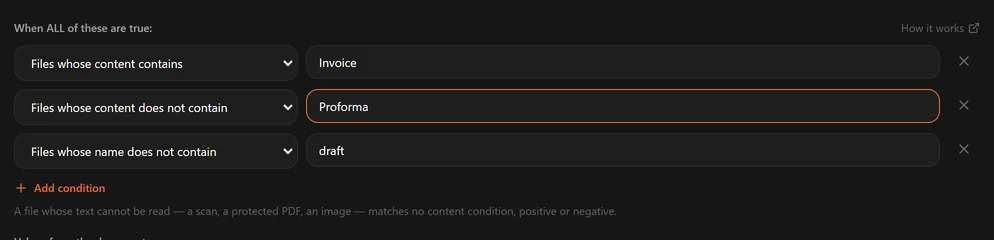
This is what turns a folder of scan_0042.pdf files into something filable. The name says nothing; the first line of the document says Invoice.
What can be read
| Type | Read? |
|---|---|
| PDF with a real text layer | Yes |
| Scanned PDF (a picture of a page) | With Also read scanned documents switched on: the first and the last page — see Scanned documents |
| DOCX | Yes |
| TXT, MD, CSV, LOG and other plain text | Yes |
| DOC (the old binary Word format), XLSX, PPTX | No |
| JPEG, PNG and TIFF images | With that same switch on |
| Other images, video, audio, archives | No |
The type is worked out from the file's contents, not its extension. A Word document someone saved as report.pdf is still read correctly, and a JPEG named invoice.pdf is treated as the image it is.
It only opens what it has to
Cheap conditions run first. A rule that says extension is .pdf and content contains "Invoice" never opens a single photo — the extension test rules them out before anything is read. And a rule set with no content conditions and no values from the document never opens any file.
Limits
Reading is bounded so a huge document cannot stall a run:
| Limit | Value |
|---|---|
| Largest file opened | 32 MB |
| Text read per file | 256 KB |
| PDF pages read | First 20 |
| Time allowed per file | 5 seconds |
Past those points extraction stops. A keyword that only appears on page 21 of a PDF will not be found, and the rule will not match — worth knowing before you point a delete rule at a folder of long documents.
The text of your files is never stored
Extracted text lives in memory for the length of the run and is discarded. Nothing is written to disk, nothing is logged, and nothing is sent anywhere. The one exception is a value a rule is set to put into a file name, such as an invoice date.
Worked examples
| You want | Rule |
|---|---|
| File invoices by year, whatever the scanner called them | extension .pdf + content contains invoice, tax invoice → move to Documents/Invoices/<Year> |
| Separate contracts from everything else | extension .pdf .docx + content contains agreement, contract → move to Documents/Contracts |
| Catch a specific client's paperwork | content contains Acme Ltd → move to Clients/Acme |
| Find statements by their reference format | content matches regex IBAN\s?[A-Z]{2}\d{2} → move to Documents/Banking |
Excluding files: the “does not” conditionsNew
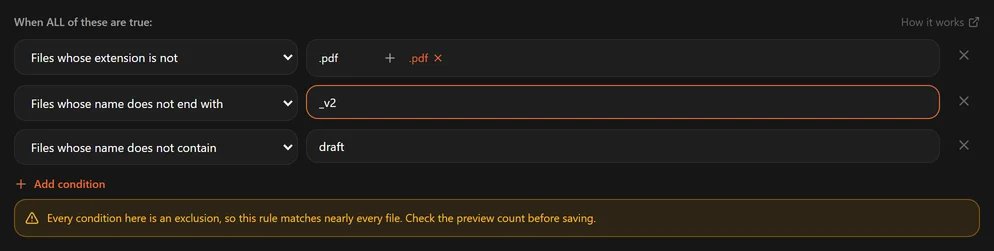
Seven conditions have an opposite, listed in the same dropdown under Does not match:
- extension is not
- name does not contain / does not start with / does not end with
- does not match regex
- content does not contain / content does not match regex
They are all Pro. Size and date have no opposite because larger than and smaller than already are each other's, as are older and newer.
Several values means “none of them”
The positive form is any of these, so the negative is none of these. name does not contain: draft, temp keeps the files that contain neither word. One condition, two words excluded.
Two things worth knowing
A rule made only of exclusions matches nearly every file. Not a PDF is true of your photos, your videos and your installers. Pair an exclusion with something positive — that is what it is for.
A file whose text cannot be read matches no content condition, positive or negative. A password-protected PDF, or a scan or photo the rule does not read: File Arbor could not look inside, so it will not claim the words are absent any more than it would claim they are present. A scan it does read never matches a “does not” condition either — text recognition can show that a word is there, never that it is not. This matters most for a delete rule — "content does not contain 'keep'" will not sweep up the documents it simply could not open.
Worked examples
| You want | Rule |
|---|---|
| Every download except installers | extension is not .exe .msi .dmg + newer than 7 days → move to Inbox |
| Photos that are not screenshots | extension .png .jpg + name does not start with Screenshot → move to Photos |
| Final documents only | extension .pdf + name does not contain draft, v1, wip → move to Documents/Final |
| Invoices that are not proformas | content contains invoice + content does not contain proforma → move to Invoices |
Regular expressions
Two conditions take a pattern: Files matching regex (against the file name) and Files whose content matches regex (against the text inside). Patterns are JavaScript regular expressions and are matched case-insensitively, exactly as written.
A few that earn their keep:
| Pattern | Matches |
|---|---|
^IMG_\d+ | Camera files: IMG_0421.jpg |
\d{4}-\d{2}-\d{2} | Anything with an ISO date in the name |
^(?!.*final).*\.psd$ | PSD files that are not final versions |
invoice[-_ ]?\d+ | invoice-1042, invoice_1042, invoice 1042 |
Patterns that can hang are rejected
Some perfectly valid patterns take exponentially longer as the input grows — (a+)+$ is the classic. Given a long file name, or 256 KB of PDF text, one of those can freeze the window. File Arbor tests a pattern before accepting it and refuses the dangerous ones, with an explanation, instead of locking up.

The test is run per length: a pattern that is safe against a 40-character file name is re-tested before it is trusted against 256 KB of document text. Patterns are also capped at 200 characters.
Version 1.2 changed how filename regex matches
Two bugs were fixed, and the fix changes which files existing patterns match. Open any rule with a regex condition on the file name and re-check it if:
- it contains
\D,\S,\Wor\B— these were being inverted, so the rule matched the opposite of what it said; - it relies on Turkish characters or an exact length — file names are no longer lowercased before matching, so
İnow matches itself, andFatura_İstanbul.pdfcounts as 19 characters rather than 20. Anchored patterns like^.{19}$behave differently as a result.
Nothing has moved on its own; this only affects the next time a rule runs. Look at the match count before you organize.
Actions: what happens to a match
Every rule ends in exactly one action, chosen under Then.

Move to folder
Files go to the folder you name. A plain name like Documents is relative to the folder being organized; an absolute path such as D:\Archive\2026 sends them anywhere you like. Missing folders are created. Building a destination out of dates or filename pieces is covered in Destination folders.
Keep a copy first (Pro). Switch on Also keep a copy in another folder and pick a folder: before the file moves, a copy of it as it is stays there, under its own name. A folder of scans that another rule works on can get its copy while the file itself goes to its archive. A copy never replaces another file; a name that is taken gets a number. If the copy cannot be made, the file is not moved and is tried again on the next run. Undoing the move from History takes the copy away too, unless it was changed since. The copy cannot go to the folder being organized itself.
Rename
The file gets a new name and stays in its folder. Available on the free plan. A move can rename on the way too: switch on Also change the file name. How a name is built is covered in Renaming files.
Move to Recycle Bin (Trash)
Available on the free plan. The file goes to the system bin, where you can restore it by hand for as long as the bin holds it. This is the right action for anything you are clearing out but not certain about — old installers, duplicate downloads, last year's screenshots.
Delete permanently (Pro)
The file is removed without passing through the bin, and there is no undo. Because of that, the editor makes you tick a confirmation box before the rule can be saved.

It exists for folders that grow forever and hold nothing precious: security-camera footage, log files, temporary exports. Delete .mp4 files older than 60 days keeps a camera folder from filling a drive.
Run a command (Pro)
The action runs a shell command once per matching file. Three variables are substituted:
| Variable | Becomes |
|---|---|
{filePath} | The full path of the file |
{fileName} | Just the name, with extension |
{folder} | The folder the file is in |

By default a command runs once per file — File Arbor remembers which files it has already handled, and runs again only if the file or the command changes (failed runs are retried). Tick Re-run on every trigger if the command is meant to fire on every pass.
Commands time out after 30 seconds. Because a command runs with your permissions and on files you did not hand-pick, the first command rule you save shows a one-time notice.
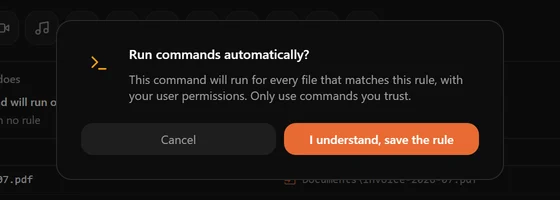
Things people actually use it for: compressing images the moment they are exported, committing files that land in a repository folder, uploading a report to a server, converting one format to another.
Not in the Microsoft Store build
The Store build hides the command action, because Store policy does not allow it. The installer from this site has it.
Destination folders that build themselves
A move destination can be a plain folder name — or it can be assembled out of pieces, so the folder structure comes from the files themselves.

Click Add folder and pick what the next level should be.
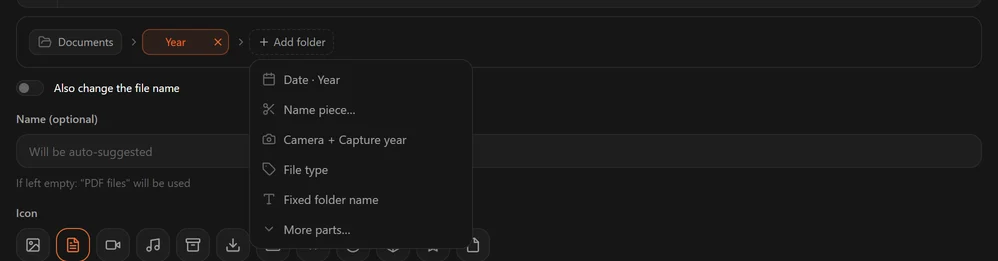
| Menu item | Produces |
|---|---|
| Date · Year | 2026 — from the file's modified date |
| Name piece… | A slice of the file name, split on a separator you choose |
| Camera + Capture year | Canon EOS R6/2026 — from the photo's own EXIF data |
| File type | pdf, jpg — the extension as a folder |
| Fixed folder name | A word you type, such as Archive |
| More parts… | The full catalogue below |
The full catalogue
| Group | Parts |
|---|---|
| Date & time | <Date:yyyy.mm.dd>, <Year>, <Month>, <Day>, <MonthShort>, <MonthName>, <WeekdayShort>, <Weekday>, <Time:HH.MM>, <CreatedDate:yyyy.mm.dd> |
| Filename | <Name>, <Name:1:3>, <Ext>, <Ext:upper>, <Ext:lower> |
| Folder | <Folder> — the name of the folder the file came from |
| Photo (EXIF) | <ExifDate:yyyy.mm.dd>, <ExifYear>, <ExifWeekdayShort>, <Camera>, <Lens>, <ISO>, <FocalLength>, <Dimensions> |
Date formats use lowercase letters for dates and uppercase for times: yyyy, mm, dd, HH, MM, ss. Month and weekday names follow the app's language.
Name pieces
When files are named in a pattern — Anna_Invoices_2026_Mars — a piece of the name can become a folder. Type one of your own file names as the example, choose the separator, and click the piece you want.

The preview
Below the form, What a run does lists the files of a watched folder and where each one would go, before anything moves. With more than one watched folder, pick the one to preview from the list above it.
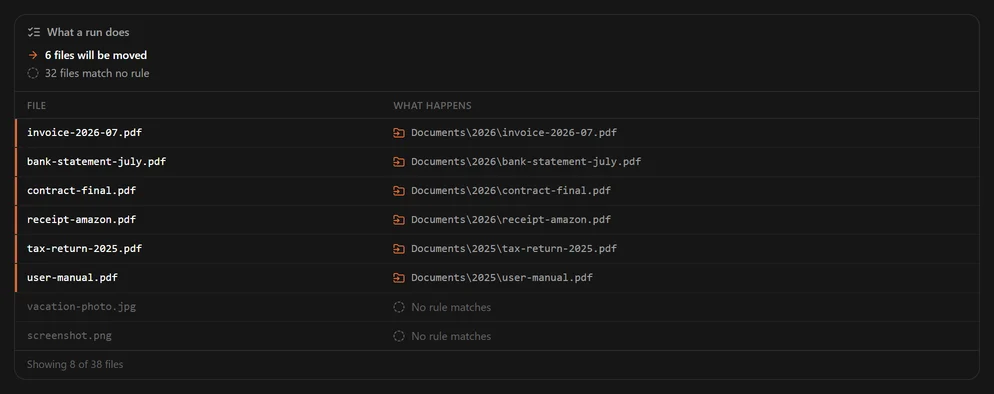
Two things to check
Do not send files back into the folder being scanned. If the destination resolves to the watched folder's own root, the editor warns you: files would be found again on the next pass.
A part with no value is skipped, and so is the file. If a photo has no camera data and the destination needs <Camera>, the file is left where it is and the History log says which part was missing — rather than dropping everything into a folder called Unknown.
Worked examples
| Destination | Result |
|---|---|
Documents/<Year> | Documents/2026/invoice.pdf |
Photos/<ExifYear>/<Camera> | Photos/2026/Canon EOS R6/IMG_0421.jpg |
Archive/<Year>/<MonthName> | Archive/2026/September/report.pdf |
Sorted/<Ext:upper> | Sorted/PDF/contract.pdf |
Clients/<Name:1:1> | Files split on _, first piece becomes the client folder |
Renaming filesNew
A rule can give a file a new name. Choose Rename under Then and the file is renamed where it is, or keep Move to folder and switch on Also change the file name to rename it on the way. Either way it keeps its file type.
Renaming is part of the free plan. A rename counts toward the free plan's 20 files a day, like a move.
Building the name
A name is built from parts, the way a destination folder is. Click Add part and pick one:
| Part | Gives |
|---|---|
| File date | The day the file was last modified: 2026-07-05 |
| Time | The time it was last modified: 14-30 |
| Original name | The name the file has now, without its extension |
| Photo capture date | The day a photo was taken, from its EXIF data — or the file date, if it has none |
| Fixed text | Words you type, the same for every file |
Click a date or time part to choose how it is written: 2026-07-05, 2026_07_05, 20260705, 05.07.2026 and more. Between parts sets what goes between two parts — _, -, ., a space, or nothing.
| Parts | Between parts | scan.pdf, last modified on 5 July 2026, becomes |
|---|---|---|
| File date, Original name | _ | 2026-07-05_scan.pdf |
| Original name, File date | - | scan-2026-07-05.pdf |
File date, Fixed text invoice | a space | 2026-07-05 invoice.pdf |
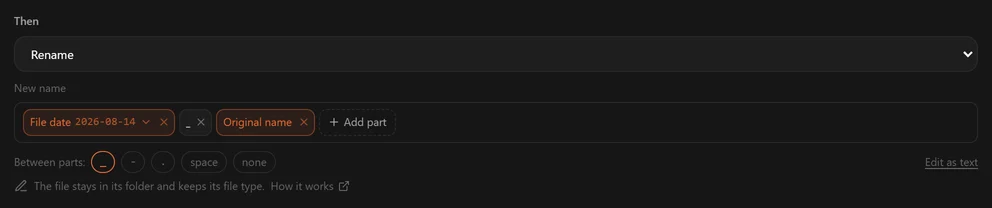
On Pro, Add part also offers values read from inside the document — a date, an amount, an invoice number. See Values from the document.
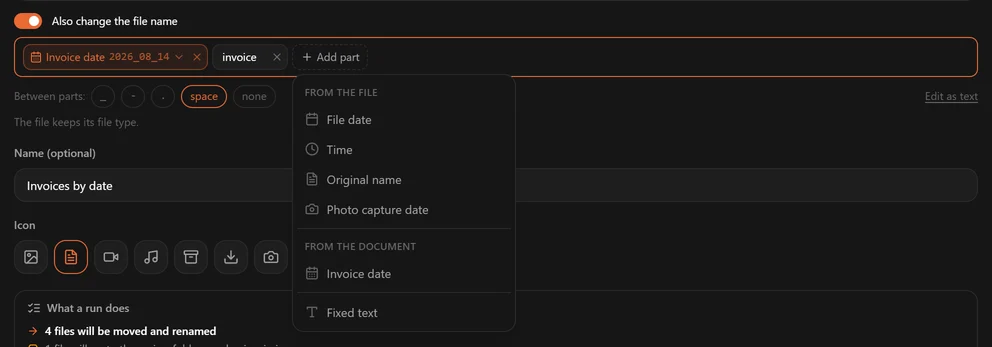
Edit as text
Edit as text shows the whole name as one line, each part in angle brackets: File date and Original name become <Date:yyyy-mm-dd>_<Name>. Every part of the destination catalogue works in a name too, such as <Camera> or <MonthName>. Back to parts switches back. A name cannot contain / or \.
What File Arbor takes care of
- A file is renamed once. A rule that puts the date in front of the name does not do it again on the next run, after a restart, or when Auto Mode sees the renamed file arrive — there is no
2026-07-05_2026-07-05_scan.pdf. Editing the rule later does not rename the files it has already named. - Nothing is overwritten. If the new name is taken, the file gets a number —
invoice (1).pdf— whatever the conflict setting says; only with that setting on Skip is the file left as it is instead. - The name works on Windows and on macOS. Characters a file name cannot hold are removed (in a value read from a document they become a hyphen), a reserved name such as
CONgets an underscore, and a name is kept within 255 bytes. - The file type stays. The extension is always the file's own, so a new name never changes what kind of file it is.
- In a subfolder scan, a renamed file stays in its own subfolder.
Before and after a run
In the rule editor, the preview — What a run does — lists each file with its new name before anything happens. After a run, Undo gives the files their old names back. A single rename can also be undone later from History; the rule then leaves that file alone until the file changes.
Values from the documentNew
A rule can read a date, an amount or a piece of text such as an invoice number from inside each document, and use it in the file's new name and in the folder it goes to. A PDF that says Invoice date: 05/07/2026 can end up as Invoices/2026/2026_07_05 invoice.pdf.
Reading values is part of Pro.
Adding a value
In the rule editor, the Values from the document panel sits between the conditions and Then. Click Add value and pick how the value is found.
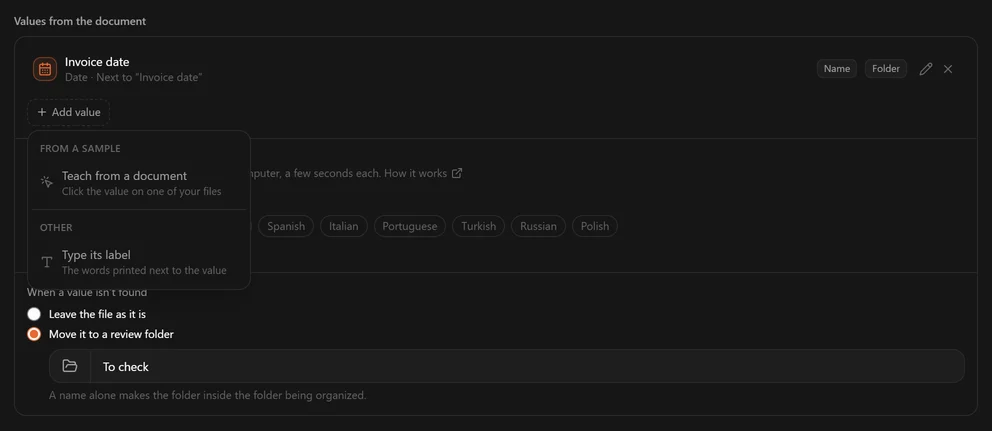
Teach from a document. Choose a sample, a document like the ones the rule sorts, and click the value on it. File Arbor learns the label next to it and how the value is written, and finds it in the next document of that kind. If the sample does not show whether a date such as 05/07/2026 puts the day first, you are asked once: Day first, like 31/12 or Month first, like 12/31. The sample can be a PDF, a Word document, a text file, or a JPEG, PNG or TIFF image; a scanned one needs Also read scanned documents switched on.
Type its label. Type the words printed next to the value, as the document prints them — Order no — and pick the kind of value: Date, Amount or Text. The value is read to the right of the label or below it. For a date, choose Day first, like 31/12 or Month first, like 12/31 if you know how your documents write it, or leave it at As each document shows: then a document that does not make it clear is left alone rather than guessed.
The first date in the document. Bank statements and letters often print their date with no label next to it. Choose Type its label, pick Date, and under Where in the document choose First date in the document. What you type then only names the value: the first date from the top of the document is used, wherever it is printed.
A rule reads up to eight values.
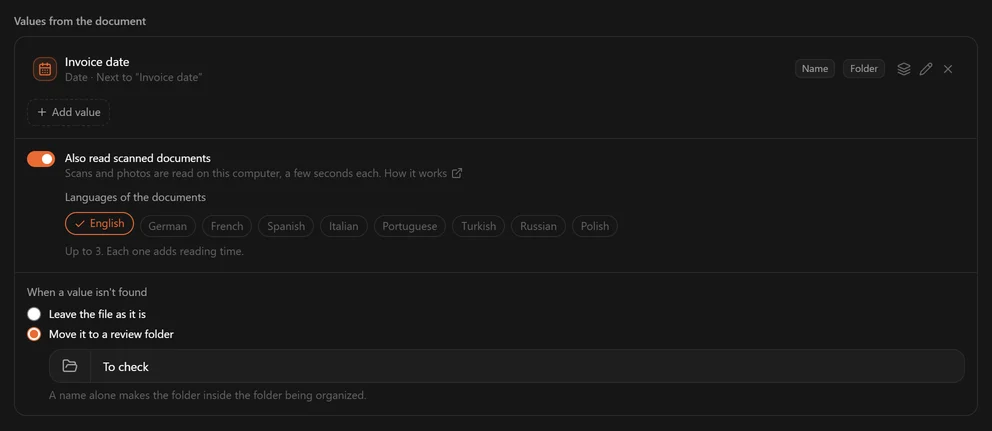
Using a value
A value the rule reads appears under From the document in two menus: Add part, for the new name, and Add folder, for the destination.
| Kind | In the name | As a folder |
|---|---|---|
| Date | 2026-07-05, 2026_07_05, 05.07.2026, 2026 and more | Year, Month or Year and month |
| Amount | Decimal point 1234.20, Decimal comma 1234,20, Whole number 1234, Currency code EUR | Currency |
| Text | As written, Uppercase or Lowercase | As written |
A character a file name cannot contain, such as the / in INV/2026/7, becomes a hyphen: the name gets INV-2026-7. In Edit as text, a value shows up as a <Field:…> part.
Look it up in a list
Bank statements, contracts and loyalty cards rarely print a label next to what tells them apart: an account number, a contract number, a shop's name. A list says it once, the words a document prints and what each one gives back, so one rule does what would otherwise take a rule per account.
Click Add value, choose Look it up in a list, give the list a name and fill in its rows:
| Find in the document | Gives back |
|---|---|
IKEA family Plus | IKEA |
BLZ 250 501 80 Kontoauszug | Sparkasse\Statements |
Ihr Bausparvertrag Nr. | LBS |
- The first of the words decides. The document is read from the top, and the first of these words it prints gives the value.
- Exact words. Words are matched whatever their case, accents or spacing, but whole and exactly, within one line: an account number one digit off is another account, scanned or not. Where two rows match the same words, the longer one wins, so
Ihr Bausparvertrag Nr. 4711comes beforeIhr Bausparvertrag Nr.. - Folders and names. Use the list under Add folder or Add part like any value. In a folder,
\or/in what a row gives back makes subfolders, up to four:Sparkasse\Statementsfiles intoSparkasseand thenStatements. In a name it becomes a hyphen. - A document with none of the words is not the rule's. Unlike a value that is not found, the file is passed on to the next rule, as if a condition had not matched.
- Paste from a spreadsheet. Two columns copied from a spreadsheet and pasted into the first row fill as many rows. A list holds up to 500 rows, and Change the list of … next to it changes them later.
The invoice example, step by step
Pick out the invoices
Add conditions that match them — for example, extension
.pdfand content containsinvoice.Read the date
Under Values from the document, click Add value and choose Type its label. Type
Invoice date, as your invoices print it, choose Date and click Add.Build the folder
Choose Move to folder and type
Invoices, then click Add folder and pick Invoice date · Year.Build the name
Switch on Also change the file name and set Between parts to a space. Click Add part, pick Invoice date, then click the part and choose
2026_07_05. Last, add Fixed text and typeinvoice.
A PDF that says Invoice date: 05/07/2026, with Due date: 19/07/2026 further down, becomes Invoices/2026/2026_07_05 invoice.pdf. The due date is never taken for the invoice date.
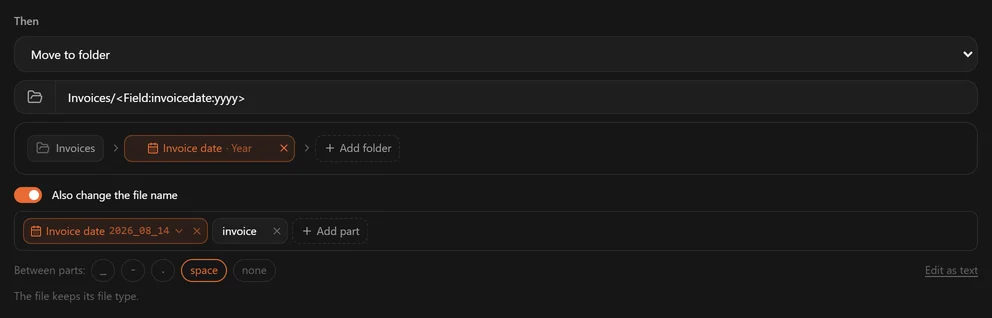
When a value is not found
Some documents will not have it: a receipt among the invoices, a vendor who prints the label differently, a date that could be read either way round. File Arbor does not guess. Under When a value isn't found, choose:
- Leave the file as it is — the default. The file stays where it is, under its own name.
- Move it to a review folder — the file goes to the folder you name, under its own name, for you to look at. A name alone, such as
To check, makes that folder inside the folder being organized.
Either way the file is reported once, not on every run: one History entry that names the value and the reason, and a count in the notification. It is read again when the file changes or when you change the rule.
The rule stops there. A file whose value could not be read is not passed on to the next rule, so an invoice with an unreadable date never falls through to a catch-all rule below it. A list is the one exception: a document that prints none of its words is not the rule's at all.
Documents laid out differently
A vendor that changes its template over the years, or two vendors that print the same date by different words, need no second rule: one value can be found in several layouts.
Next to the value, click Find … in another layout (the stacked-layers button) and choose Teach from a document — open one of the documents laid out the other way and click the value on it — or Type its label. The value then lists each layout it is found in, such as Next to “Data Emissione” and Under “Emessa il”, and each one can be removed on its own. The name and folder parts that use the value stay as they are.
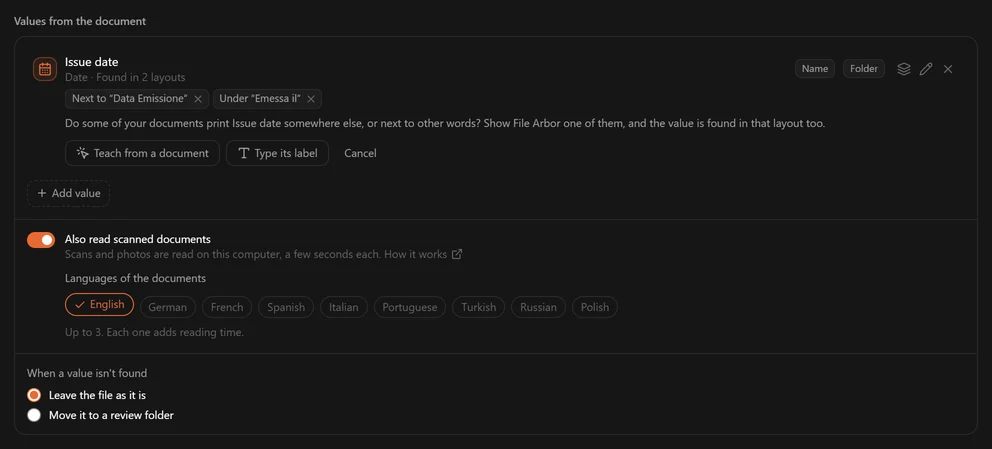
The quickest way in is the preview: a file left alone because its value is not where the rule looks shows Teach “…” on this document, which opens that very file.
The layouts are tried in order, and the first that finds the value is used. A layout that finds its label but cannot read the value next to it safely, such as a date that reads both ways round, leaves the file alone rather than taking a value from another layout. Each layout is found by the words printed by the value; a value with no label is found by its place on the page, which cannot tell one layout from another, so for those documents use a separate rule with a condition that tells them apart. A value can be found in up to six layouts.
What is read
Values come from PDFs with a text layer (the first 20 pages and the last one), Word documents (DOCX, headers and footers included) and plain text files. Scans and photos of documents need Also read scanned documents.
Checking before a run
What a run does, the preview in the rule editor, shows each file with the values used, its new name and its folder, and says why a file will be left alone. It is worked out the same way as the run, so what it shows is what the run does.
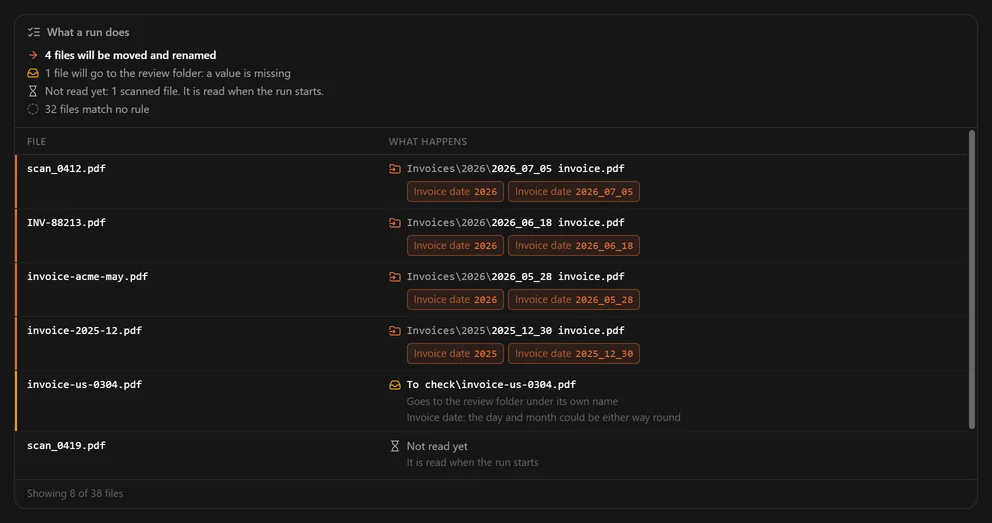
Free plan: values are Pro
On the free plan, a rule that reads values from documents is paused, not deleted, until you upgrade. While it is paused, a rule below it may take its files.
Scanned documents and photosNew
A scanned PDF holds a picture of each page, not its text. With Also read scanned documents switched on, File Arbor recognises the text on the page, on your computer, so content conditions and values from the document work on scans and on photos of documents too. This is part of Pro.
Switching it on
The switch sits in the Values from the document panel. It appears once a rule reads the document, with a content condition or a value, and it is on for new rules. A rule made before 1.3 has it off and says so; switch it on to let that rule read scans.
Under Languages of the documents, pick the languages your scans are written in — up to three, since each one adds reading time. Nine are available: English, German, French, Spanish, Italian, Portuguese, Turkish, Russian and Polish.

What is read
| File | What is read |
|---|---|
| PDF from a scanner | The first and the last page |
| JPEG, PNG | The image |
| TIFF | The first page |
| PDF with a text layer | Its text layer, as before; only a first or last page with no text on it is recognised |
Recognition takes about a second a page. Pages in between are never read, so a value on page 2 of a three-page scan is not found. HEIC, WebP, GIF and BMP images and PDFs that need a password are not read at all, and handwriting is not what it is made for.
In the preview
Because recognition takes time, a preview reads at most six scans. The rest show as Not read yet and are read when the run starts. On a delete rule, the preview says how many scans it has not read yet: the run reads them first and may delete them too.
With content conditions
A content condition can match the recognised text. A “does not” condition never matches a scan, though: text recognition can show that a word is there, never that it is not, and on a delete rule a wrong guess would cost you files.
Amounts on scans
On a scan, £, ₺ and ₽ are too easily mistaken for one another to be trusted. The amount is still read, but its currency counts only when the document also writes it as a code, such as GBP, TRY, TL or RUB, or with € or $.
Exporting and importing rulesNew
Rules can leave the computer they were made on: as a backup before a reinstall, to set up a second computer, or to hand a working setup to someone else. Export and Import sit at the top of the Rules page, on the free plan and on Pro.
Export
Export lists your own rules, all ticked. Untick the ones to leave out, then pick where the file goes. It is one small .json file that holds what each rule does — its conditions, its action, the values it reads, its folders — and nothing else: never your files, never text or values read from them, and not which folders the rules are assigned to.
The six quick rules are not exported, because every installation has them. To take a changed quick rule along, duplicate it first: the copy is a rule of your own.
Import
Import opens a rules file and lists what it holds before anything is added.
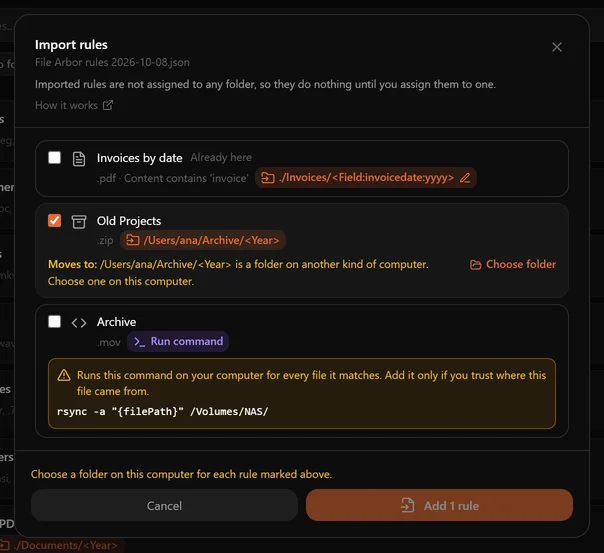
- Ready rules are ticked.
- Already here — a rule that does exactly what one of yours does is not ticked, so importing the same backup twice does not add everything twice.
- A rule that runs a command shows the command in full and is not ticked. Tick it only if you trust where the file came from: the command runs with your permissions for every file the rule matches.
- A rule that needs Pro says so on the free plan, and the free plan imports as many rules as it has room for.
- A rule this version cannot read, damaged or made by a newer File Arbor, says why and stays out. A setting the app does not know is never skipped quietly, because it could change what the rule does.
An imported rule keeps its name. If you already have a rule by that name, the new one is called "Invoices (2)".
Folders from another computer
A rule that moves files names a folder, and that folder may not exist where the rule lands.
- A folder written on the other kind of computer —
D:\Sortedarriving on a Mac,/Users/ana/Sortedarriving on Windows — has to be replaced. Pick a folder on this computer with Choose folder. - A folder that is not on this computer, from the same kind of system, can be replaced or kept. A kept folder is created on the first run that needs it, as long as its drive is there.
- A folder inside the watched folder, such as
Invoices/<Year>, works anywhere and asks for nothing.
The parts after the folder stay as they were: D:\Sorted\<Year>, given /Users/ana/Archive in its place, becomes /Users/ana/Archive/<Year>.
After importing
Imported rules are not assigned to any folder, so nothing happens until you assign them — see the next section. Open each one in the editor, or look at a folder's preview, before its first run, as you would with a rule you wrote yourself.
Assigning rules, and the order they run in
Rules exist on their own; a folder gets a rule when you assign it. Open the panel from Add Rule on a fresh folder, or the gear icon on any folder.
The first matching rule wins
A file is handled once. File Arbor walks the folder's rules in order, and the first one that matches takes the file; the rest are not consulted.
That makes order the whole game when rules overlap. Put the specific rule above the general one:
- PDFs whose name contains
invoice→Documents/Invoices - PDFs →
Documents
Reverse those two and every invoice lands in Documents, because the broad rule matched first. If a rule seems to be ignored, this is almost always why.
The sort control on the Rules page (by name, by creation date) changes only how the list is displayed. Matching order is the rule's own position, not the current sort.
Enabling and disabling
A rule can be switched off without being deleted or unassigned. Useful for a seasonal rule, or for testing whether a rule is the one causing a surprise.
Running a folder, and undoing it
Press Run on the folder card. File Arbor scans the folder, works out what each rule would do, and shows you before touching anything.
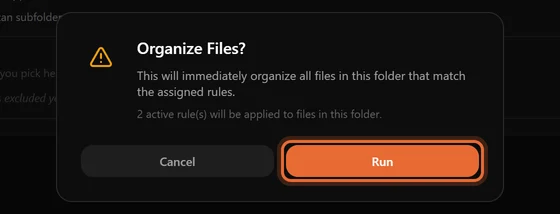
While the run is going, a progress bar appears on the card with a Cancel button. Cancelling stops the run where it is; the files already moved stay moved — and can still be undone.
Undo
After a run, Undo puts the files back where they came from, under their old names. It covers moves and renames. It cannot cover:
- Permanent deletions — the file is gone.
- Commands — File Arbor cannot know how to reverse an arbitrary command.
Files sent to the Recycle Bin are not undone by the app, but you can restore them from the bin yourself. A single move or rename can also be undone later, from History.
When a file already exists at the destination
Set once, in Settings, and it applies to every rule:
| Setting | Behaviour |
|---|---|
| Rename (default) | The incoming file gets a number: invoice (1).pdf. Nothing is ever overwritten. |
| Overwrite | The existing file is replaced. |
| Skip | The incoming file is left where it is. |
Rename is the reason a badly written rule cannot destroy an existing document. Change it only if you know why you want to.
Subfolder scanningPro
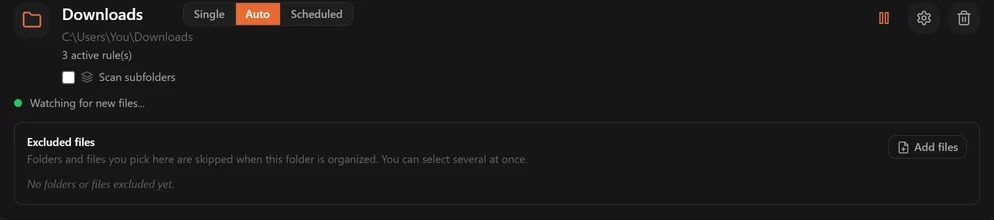
By default a run looks at files sitting directly in the watched folder. Tick Scan subfolders on the folder card and it walks the whole tree.
It is Pro, and it works with Single mode only — this is a sweep you trigger, not a live watcher. If the folder is in Auto mode, File Arbor offers to switch it.
Where matched files land
Move all files together (flatten). Everything that matches goes to the destination, and the source structure is forgotten. Reports/2024/q1.pdf → Documents/q1.pdf. Good for collapsing a mess into one tidy place.
Keep subfolder structure (preserve). The tree is recreated under the destination. Reports/2024/q1.pdf → Documents/Reports/2024/q1.pdf. Good when the existing structure means something.
Flatten plus Overwrite can lose data
Two files called notes.txt in two different subfolders both want the same destination name. With conflict behaviour set to Overwrite, the second replaces the first. The first-run dialog flags this combination in red and offers to run the scan with Rename instead.
The first run asks first
The first time you scan a folder's subfolders, File Arbor shows what it found — how many files, how many folders, how deep, and a sample of the moves — before anything happens.
Excluding folders and files
Some subfolders should never be touched. Add them to the skip list, which applies in every mode, not just recursive scans.

Two lists are at work:
Yours — chosen with the Add folders and Add files buttons. Stored as a path relative to the watched folder, so excluding Projects/Archive does not exclude a different Archive somewhere else in the tree.
Built in — noise that is skipped everywhere, without asking: node_modules, .git, dist, build, .next, .cache, vendor, __pycache__, .idea, .vscode, macOS Library and .Trashes, Windows $RECYCLE.BIN and System Volume Information, Linux lost+found, plus .DS_Store, Thumbs.db and desktop.ini.
The size ceiling
A recursive scan stops at 100,000 files. If a folder is that big, the run tells you it was cut short and points you at the exclude list. In practice this only happens when a folder tree contains a developer project or a whole user profile.
History: what the app did
Every move, rename, bin, delete and command run is logged with the file, the rule that matched it, the destination and the time.
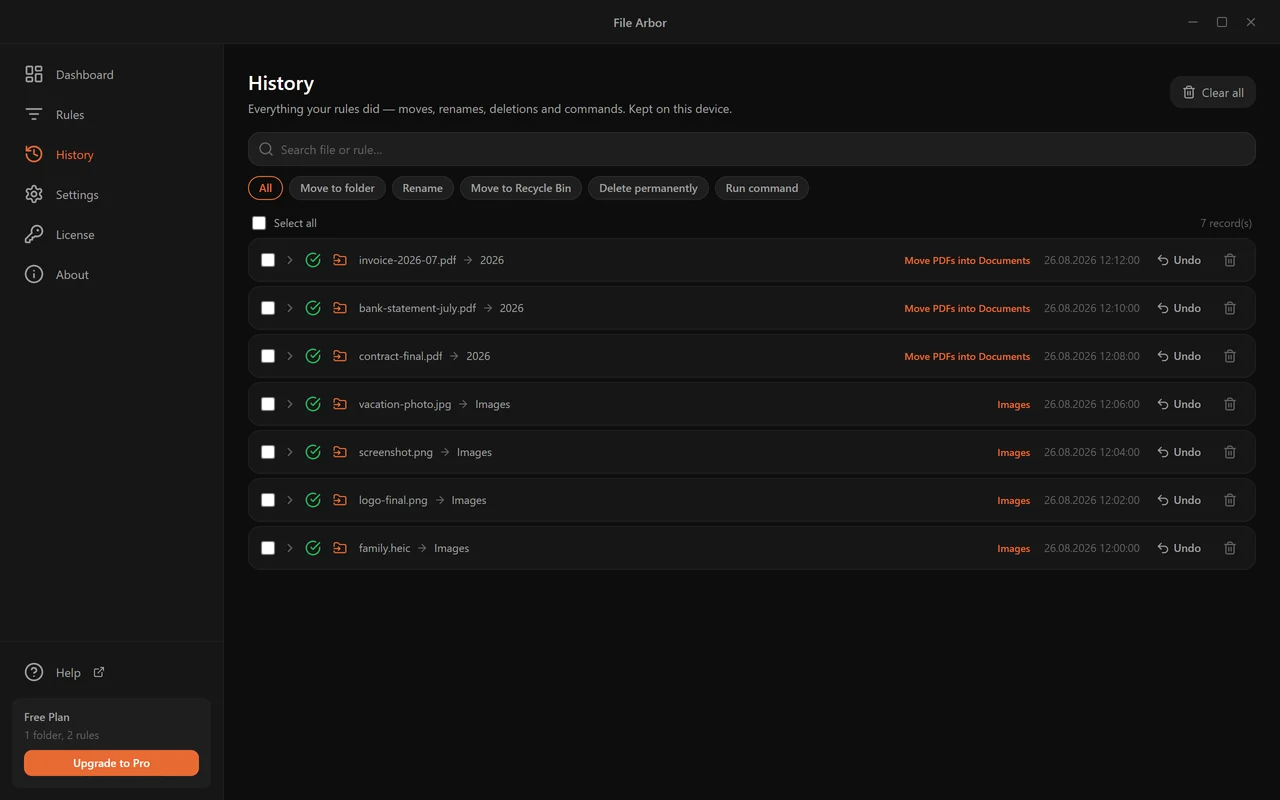
Filter by action type, search by file name, and page through with 25, 50 or 100 rows at a time.

Click a row to expand it: full source path, full destination path (including the (1) suffix if the file was renamed), the rule that matched, and, for a command, the exact command line, its exit code and its output.

Undo on a move or rename puts that one file back under its old name, in its old folder, and never over another file. The row is then marked Put back, and the rule leaves the file alone until the file changes. Undo works only while the file is still where the rule put it, unchanged; Recycle Bin sends, permanent deletes and commands cannot be undone here.
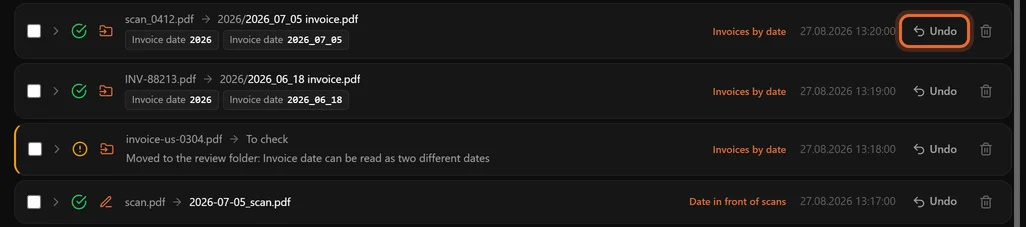
A file a rule left untouched because a value could not be read is listed too — once, as Left untouched, with the reason. See Values from the document.
Select rows to delete them from the log, or clear the log entirely. Deleting a log entry only removes the record — the file stays where the rule put it.
Settings
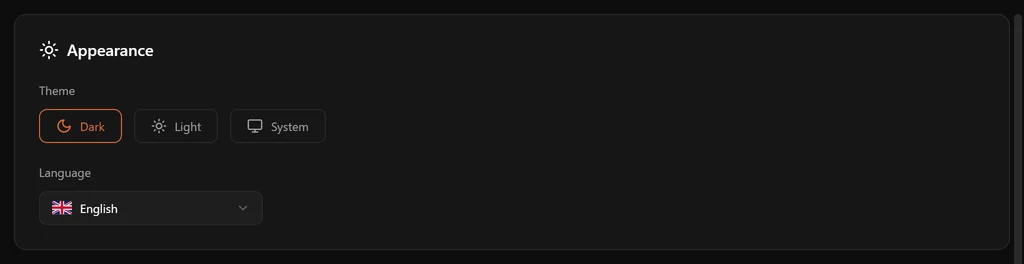
Theme — Dark, Light, or System.
Language — English, Turkish, French, Spanish, German, Portuguese, Italian and Russian. This changes the app's interface, and also the language used for month and weekday names in destination folders.
Launch at startup — File Arbor starts with your session, in the tray. A new install from the installer or the DMG has it on; the portable version leaves it off. Without it, Auto Mode and schedules do not run while the app is closed.
Closing the window — not a switch: closing the window never quits File Arbor. It keeps running in the system tray (the menu bar on macOS) and keeps watching; on macOS its Dock icon goes away with the window until you open it again. The tray menu shows what is being watched, the last file handled and today's count, gives you pause and resume for everything at once, and Quit closes the app.
Notifications — a system notification when files are organized. Batched, so a burst of twenty files is one notification and not twenty.
Tell me when files are waiting (free plan) — while File Arbor runs in the tray, a notification when five or more files in your watched folder match its rules, at most once a day. Clicking it opens the folder, where Sort now runs it. It follows the Notifications switch.
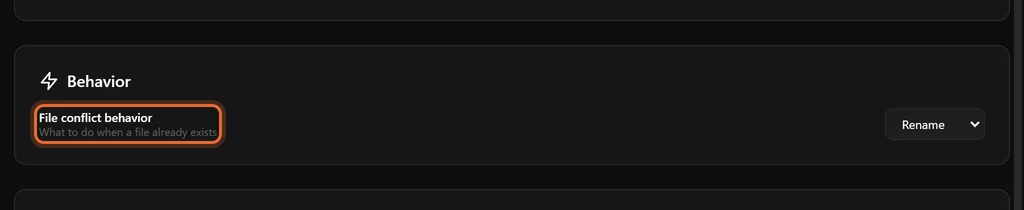
File conflict behaviour — Rename, Overwrite or Skip, as described under Running a folder. Rename is the default and the safe answer.
Free, Pro and licences
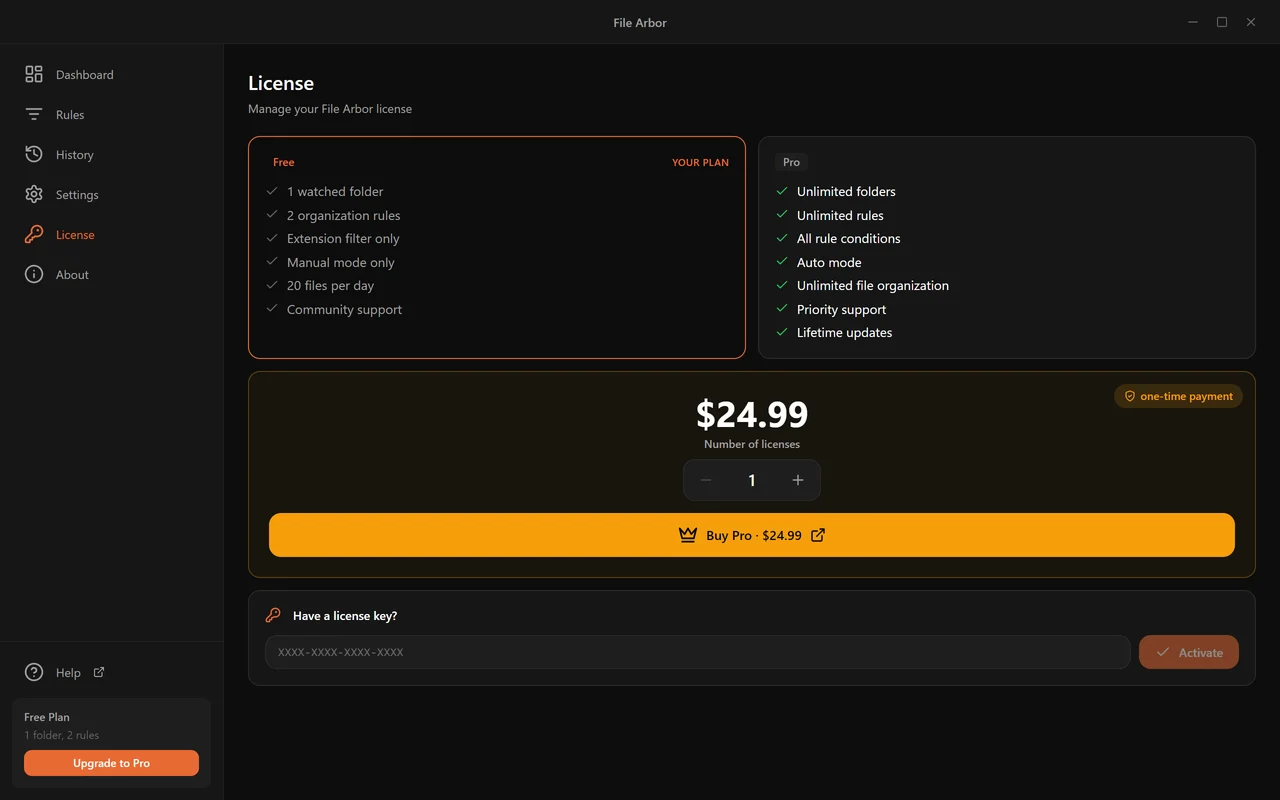
| Free | Pro | |
|---|---|---|
| Watched folders | 1 | Unlimited |
| Rules | 2 | Unlimited |
| Conditions per rule | 1 | 5 |
| Condition types | Extension only | All 18 |
| Modes | Single | Single, Auto, Scheduled |
| Actions | Move, Rename, Recycle Bin | + Delete, Run command |
| Subfolder scanning | — | Yes |
| Exclude folders and files | — | Yes |
| Content matching | — | Yes |
| Values from documents, scans | — | Yes |
| Files per day | 100 on the first day, then 20 | Unlimited |
| Price | Free | $24.99 once, lifetime updates |
The daily limit
The free plan organizes 100 files in the first 24 hours after installing, then 20 a day, counted across every folder and rule. The daily count starts again at midnight, your time. The dashboard shows where you are.

Reaching the limit stops that run and says how many files your rules found and how many are waiting. Nothing is lost: the rest is picked up after the reset, or at once on Pro.
Buying and activating
Pro is a one-time purchase of $24.99 with lifetime updates: no subscription, no renewal, no version you have to buy again. Multi-licence packs are discounted if you are buying for a team.
Clicking a locked feature names it and says what Pro does about it, and Buy Pro opens the checkout directly.

After buying, the key arrives by email in XXXX-XXXX-XXXX-XXXX form. Paste it into Licence → Have a licence key? and click Activate.
One licence, one machine
Activation binds the key to that computer. To move it, click Deactivate on the old machine — that frees the key — then activate it on the new one. If the old machine is gone or broken, write to us and we will release it.
File Arbor re-checks the licence with the server about once a day and keeps working offline in between, so a flight or a dead connection does not lock you out of your own app.
Updates
The About page carries the version number and the update check. On Windows, updates download in the background and install when you restart File Arbor; on a Mac you choose when to download them. The Microsoft Store version is updated by the Store.

When does File Arbor connect to the internet?
File Arbor sorts your files on your computer and works without an internet connection. It goes online for three things, and none of them sends your files, their names or their contents.
Licence activation and checks (Pro)
Activating a Pro licence key needs a connection: the key is checked with our licence server and tied to this computer. After that, File Arbor checks the licence again now and then while you are online, about once a day, and keeps working offline in between. On the free plan there is no licence to check.
Update checks
When it starts, File Arbor asks the release server whether a newer version exists. On Windows a new version downloads in the background and installs the next time you quit the app; on a Mac you choose when to download it. The Microsoft Store version is updated by the Store instead.
Anonymous usage statistics
To see which features are used and to fix errors, the app sends anonymous usage statistics:
- a random identifier created on your computer, not linked to your name, email address, licence key or hardware;
- the app's version, your operating system, how the app was installed, the app's language and your plan;
- events made of counts and fixed codes, such as "a run finished: 12 files moved, 2 renamed" or "a rule was created with two conditions".
It never sends file names, folder paths, document contents, values read from documents, rule or folder names, your licence key or the text of error messages. The statistics are processed by PostHog in the European Union. There is no setting in the app to turn them off. The privacy policy describes them in full.
What stays on your computer
Every rule match, move, rename and command runs on your computer. Reading the text inside a document and recognising text in scanned documents and photos (OCR) happen there too: the OCR language data ships with the app, so nothing is uploaded to read a scan. Text read from a document lives in memory for the length of a run and is never written to disk or logged.
Links you click in the app, such as Help or a link to this handbook, open in your web browser.
When something is not working
A rule matches nothing
- Look at the preview count in the rule editor. Zero there means the conditions, not the run.
- Check that the conditions are AND, not OR. Every condition has to be true.
extension .pdf+name contains invoicewill not matchreport.pdf. - Check the rule is enabled and assigned to the folder you are running.
- Check the rule order. A broader rule above this one may be taking the files first — see Assigning rules.
- For a content condition on a scan or a photo, check that the rule has Also read scanned documents switched on and that the words are on the first or the last page — see Scanned documents.
A file went somewhere unexpected
Open History and find it. The row names the rule that moved it and the exact destination. Nine times out of ten it is rule order: a broader rule matched before the one you meant.
A file was left untouched
The rule needs a value from the document and could not read it with certainty. History names the value and the reason — the label is not in the document, the date could be read either way round, a scan was not read. See Values from the document.
Auto Mode is not picking up files
- The file may be in a subfolder — Auto Mode watches the top level only.
- The watcher may be paused: the dot next to the folder is grey rather than green.
- The app may be closed. Auto Mode needs File Arbor running; turn on Launch at startup.
- On the free plan, Auto Mode is not available at all — the card shows a padlock.
A scheduled run did not happen
Schedules only fire while File Arbor is running. Check Launch at startup in Settings, and check the schedule is not paused — the panel says Schedule paused when it is.
The app says my licence is on another device
One key is active on one machine. Deactivate on the old machine, then activate here. If the old machine is not available, write to us.
A folder shows no files (macOS)
macOS is withholding permission. Grant File Arbor access under System Settings → Privacy & Security → Files and Folders, and Full Disk Access for folders such as Desktop and Documents.
A subfolder scan stopped early
The folder holds more than 100,000 files. Exclude the parts that do not need organizing — a nested project folder is usually the culprit — and run again.
Frequently asked questions
Do I need to pay to use File Arbor?
No. The free plan watches one folder, holds two rules, matches files by extension, moves and renames files or sends them to the Recycle Bin, and organizes up to 100 files on its first day and 20 a day after that. That is a complete working setup for a Downloads folder. Pro is a 24.99 dollar one-time purchase that removes the limits and adds background automation, subfolder scanning, content matching, values read from documents and scans, and the delete and command actions.
Does File Arbor send my files anywhere?
No. Every match and move happens on your computer, and scanned documents are read there too. Apart from anonymous usage statistics, which never include file names, paths or contents, File Arbor talks to the internet only to check your licence key and to look for an update. Text read out of a document lives in memory for the length of a run and is never written to disk or logged. The only values kept are the ones a rule puts into a file or folder name, and History shows them next to that change.
Can a bad rule destroy my files?
It is hard to. Every manual run shows you how many files match and asks for confirmation first, moves are written to the History log and can be undone, and the default behaviour when a file already exists at the destination is to rename rather than overwrite. Permanent deletion is a separate action that only exists on Pro and requires you to tick a confirmation box before the rule can be saved.
Will it organize files that are already in the folder?
Yes. The first run applies your rules to everything currently in the watched folder, so a pile of two thousand old downloads is sorted in one pass, within your plan's daily limit. After that, Auto Mode or a schedule handles new files as they arrive.
What happens if two rules match the same file?
The first matching rule wins and the file is handled once. Order is set by where a rule sits in the Rules list, so a narrow rule such as 'PDFs whose name contains invoice' must sit above a broad one such as 'all PDFs'.
Does Auto Mode look inside subfolders?
No. Auto Mode watches the top level of the folder only. Subfolder scanning is a manual, Pro feature that you trigger with the Run button, and the two cannot be switched on for the same folder at once — File Arbor asks which one you want.
Do scheduled runs work when the app is closed?
No. Schedules are handled inside File Arbor, not by the operating system's task scheduler, so the app has to be running for one to fire. Turn on Launch at startup in Settings and the app will be waiting in the tray.
Can I use one licence on my laptop and my desktop?
One licence key is active on one machine at a time. To move it, open the Licence page on the old machine and click Deactivate, then activate the key on the new one. If you want both machines running at once, buy a second licence — multi-licence packs are discounted.
Which file types can content conditions read?
PDFs that contain a real text layer, DOCX documents, and plain text files such as TXT, MD, CSV and LOG. A scanned PDF has no text layer, only a picture of each page: switch on Also read scanned documents in the rule and the text on its first and last page is recognised, as it is on photos of documents in JPEG, PNG or TIFF.
Where did my file go?
Open the History page. Every move, rename, Recycle Bin send, permanent delete and command run is logged with the file name, the rule that matched it, the destination path and the time. Click a row to expand it and see the full source and destination paths. A single move or rename can be undone from there.
Can I move my rules to a new computer?
Yes. On the Rules page, Export saves your rules to one file, and Import on the other computer adds them, whether it runs Windows or macOS. A folder written on the other kind of computer is picked again during the import, and imported rules start unassigned, so nothing runs until you assign them to a folder.
Something still not clear? Write to us — a real person answers.